


Luo Spiro-tilkkutyölohko Quilt Block Wizard avulla
CREATIVATE Koulutus
15. heinäkuuta 2025
Luo Spiro-tilkkutyölohko Quilt Block Wizard avulla
Quilt Block Wizard Spiro-työkalu muodostavat yllättävän tehokkaan yhdistelmän. Lopputulos näyttää monimutkaiselta ja hienostuneelta – mutta kuten tulet huomaamaan, se syntyy vain muutamalla yksinkertaisella vaiheella. Tämä on erinomainen tekniikka, joka kannattaa ottaa käyttöön, kun teet tilkkutöitä, koristepaneeleita tai mitä tahansa projektia, jossa tarvitaan näyttävää geometrista kuviota.
Tarvittavat tarvikkeet
- Creativate Extra Elite (Windows tai Mac)
Ohjeet
Luo Spiro-malli
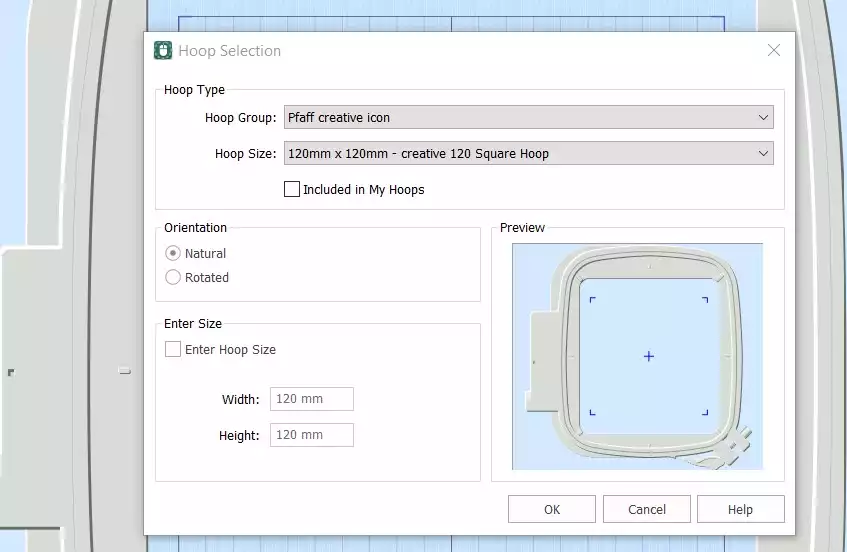
- Avaa Creativate Kirjonta Ohjelmisto, valitse Tyhjä kangasja aseta renkaan koko 120 mm. Klikkaa OK.
- Mene osoitteeseen Luo-välilehti ja klikkaa Spiro. Kun valintaikkuna avautuu, aseta Koko-asetukseksi 100 mm ja klikkaa Satunnainen. Klikkaa OK varoitusviestin kohdalla — uusi Spiro luodaan. Jatka napsauttamista Satunnainen kunnes löydät mieleisesi mallin. Voit myös hienosäätää muotoa manuaalisesti kahvojen avulla. Napsauta OK kun olet valmis.
Vinkki: Saat kattavan oppaan Spiro Wizard -toiminnosta kirjoittamalla sanan "Spiro" Studion hakukenttään.
- Siirry Koti-välilehteen ja napsauta Kopioi. Spiro tallennetaan nyt leikepöydälle.
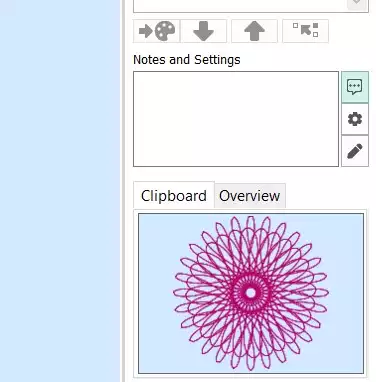
Tee tilkkutyölohko
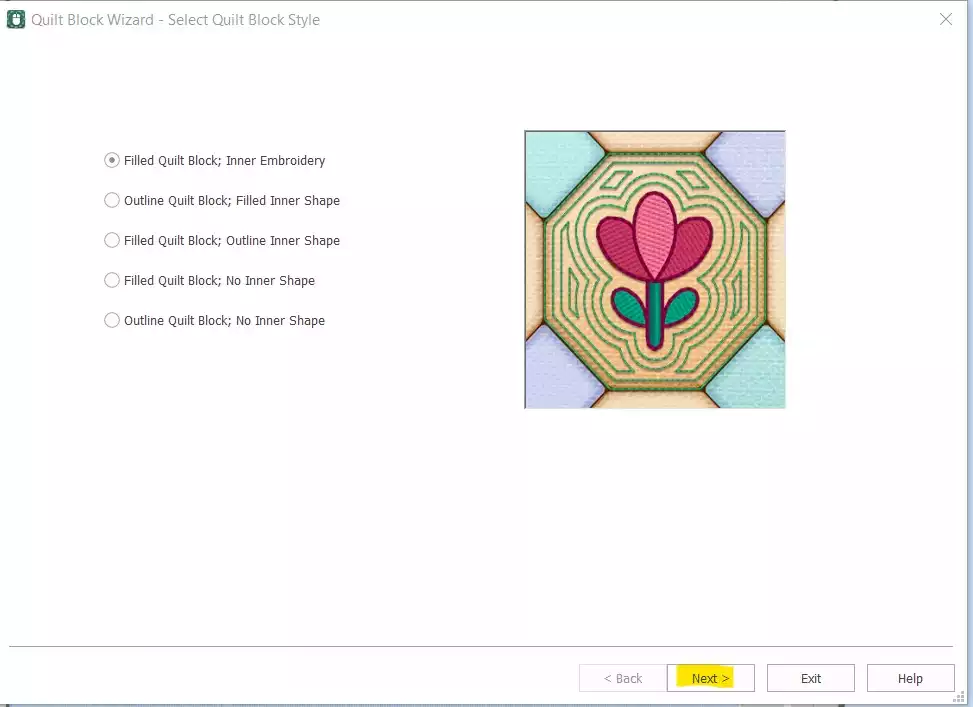
- Siirry osoitteeseen Luo → Tilkkutyölohko ja select Täytetty tilkkutyölohko: Sisäosa Kirjonta. Klikkaa Seuraava.
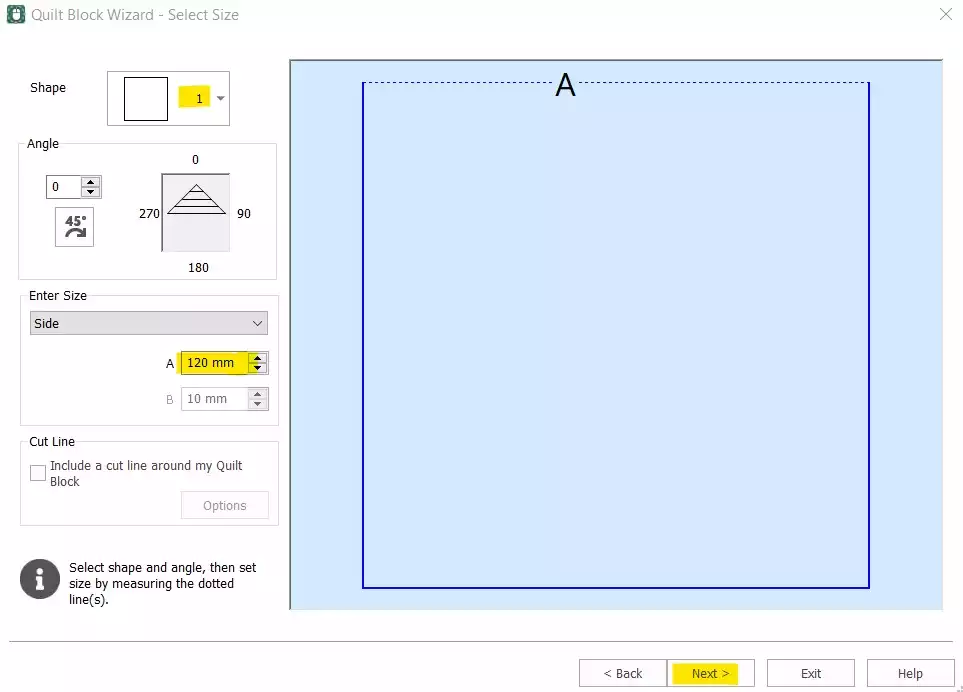
- Select Muoto 1 (neliö) ja aseta Side-asetukseksi 120 mm. Klikkaa Seuraava.
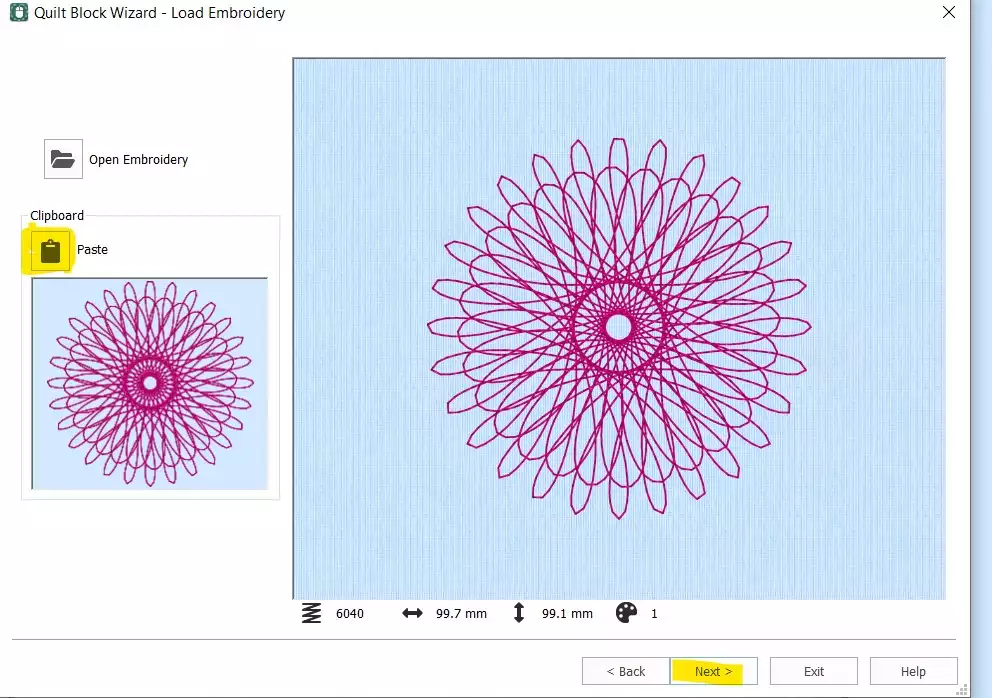
- Klikkaa Liitä lisätäksesi Spiron leikepöydältä. Napsauta Seuraava.
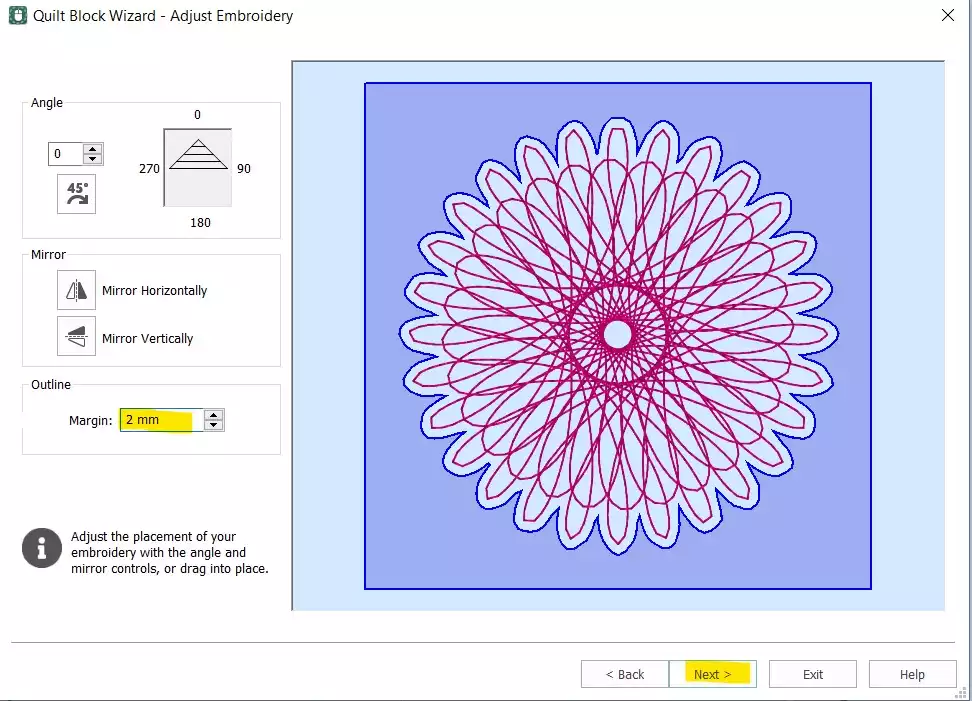
- Aseta Reunus 2 mm. Klikkaa Seuraava.
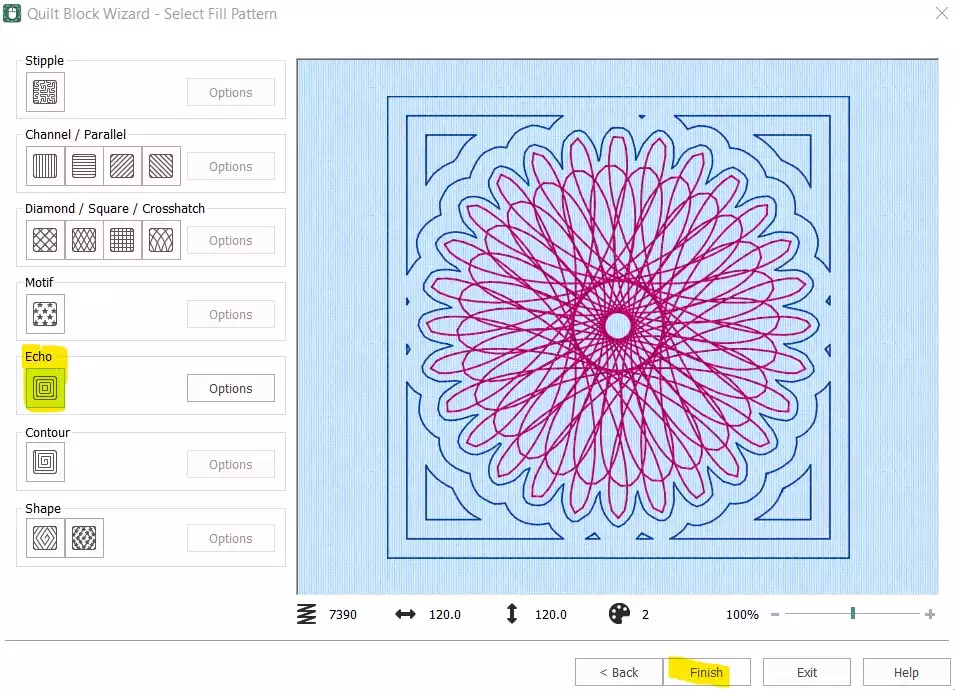
- Select Kaiku ja klikkaa Lopeta.
Siivoa ja viimeistele ompeleiden järjestys
- Quilt-lohko on nyt valmis – mutta alkuperäinen erillinen Spiro-lohko on vielä poistettava, ja ompeleiden järjestystä on muutettava, ennen kuin kuvio on valmis vientiä varten.
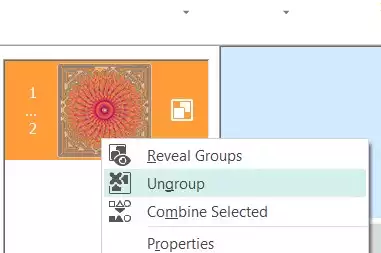
- select Film Strip -näkymässä ensimmäinen väri (alkuperäinen Spiro), napsauta hiiren kakkospainikkeella ja valitse Poista. Näkyvissä pitäisi nyt olla vain peittolohko, johon Spiro on upotettu. Napsauta hiiren oikealla painikkeella Kirjonta -kohdasta ja select Poista ryhmä.
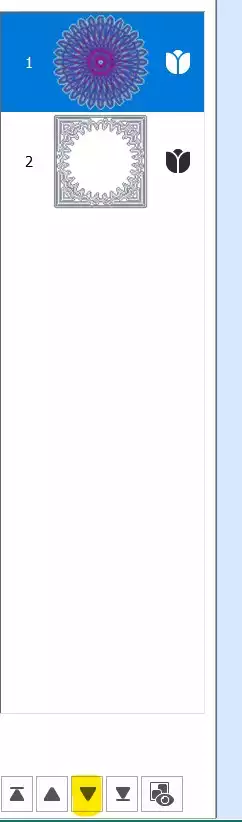
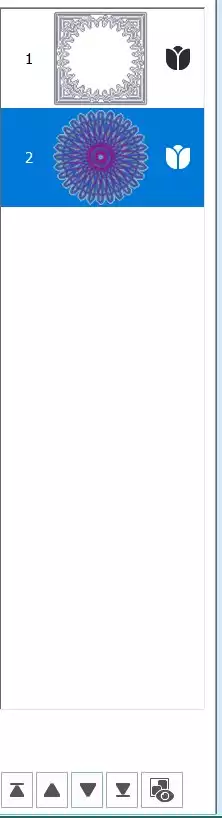
- Select ensimmäinen osa (Spiro) ja käytä alas-nuolinäppäin elokuvarullan alaosassa siirtääksesi sitä alaspäin ompeleiden järjestyksessä.
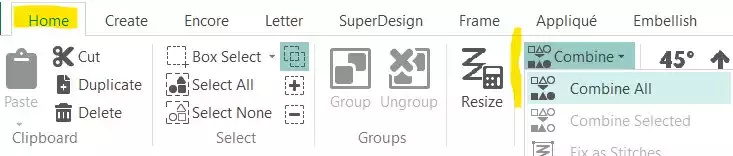
- Mene osoitteeseen Koti-välilehti ja klikkaa Yhdistä → Yhdistä kaikki.
Tallenna ja vie
- Spiro-tilkkutyösi on valmis. Tallenna työtiedosto ja vie se sitten haluamassasi muodossa – esimerkiksi .vp3-tiedostona.