


Créer un bloc de quilt « Spiro » à l'aide de Quilt Block Wizard
CREATIVATE Éducation
15 juillet 2025
Créer un bloc de quilt « Spiro » à l'aide de Quilt Block Wizard
L'assistant « Quilt Block Wizard l'outil « Spiro » forment une combinaison étonnamment puissante. Le résultat semble sophistiqué et complexe, mais comme vous allez le voir, il suffit de quelques étapes simples pour y parvenir. C'est une technique très utile à avoir dans votre arsenal pour réaliser des blocs de quilt, des panneaux décoratifs ou tout autre projet nécessitant un motif géométrique saisissant.
Ce dont vous aurez besoin
- Creativate Extra Elite (Windows ou Mac)
Instructions
Créer le motif Spiro
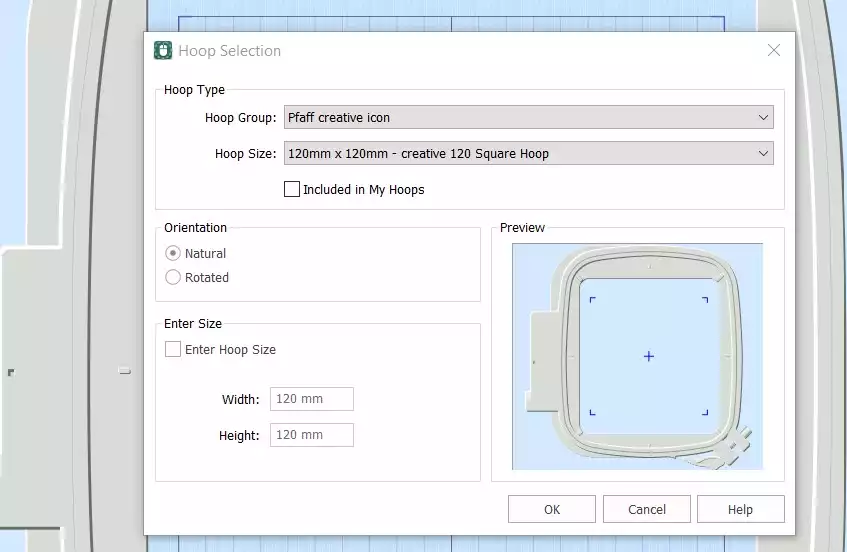
- OuvrezEmbroidery Creativate , puis sélectionnez Toile vierge, puis réglez la taille du cerceau sur 120 mmCliquez sur OK.
- Aller à la page Onglet Créer et cliquez sur Spiro. Lorsque la boîte de dialogue s'ouvre, définissez la taille sur 100 mm et cliquez sur Au hasardCliquez sur OK lorsque le message d'avertissement s'affiche — un nouveau Spiro sera généré. Continuez à cliquer Au hasard jusqu'à ce que vous trouviez un motif qui vous plaise. Vous pouvez également utiliser les poignées pour affiner la forme manuellement. Cliquez sur OK une fois que vous avez terminé.
Astuce : pour consulter le guide complet de l'assistant Spiro, tapez « Spiro » dans la barre de recherche de Studio.
- Rendez-vous dans l'onglet Accueil et cliquez sur Copier. Le Spiro sera alors enregistré dans le presse-papiers.
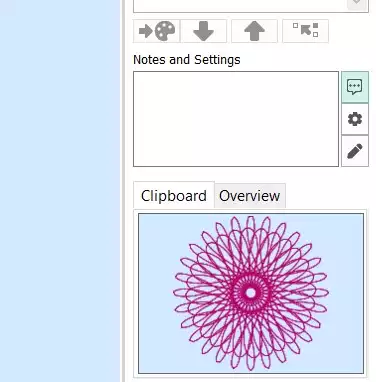
Réaliser le bloc de patchwork
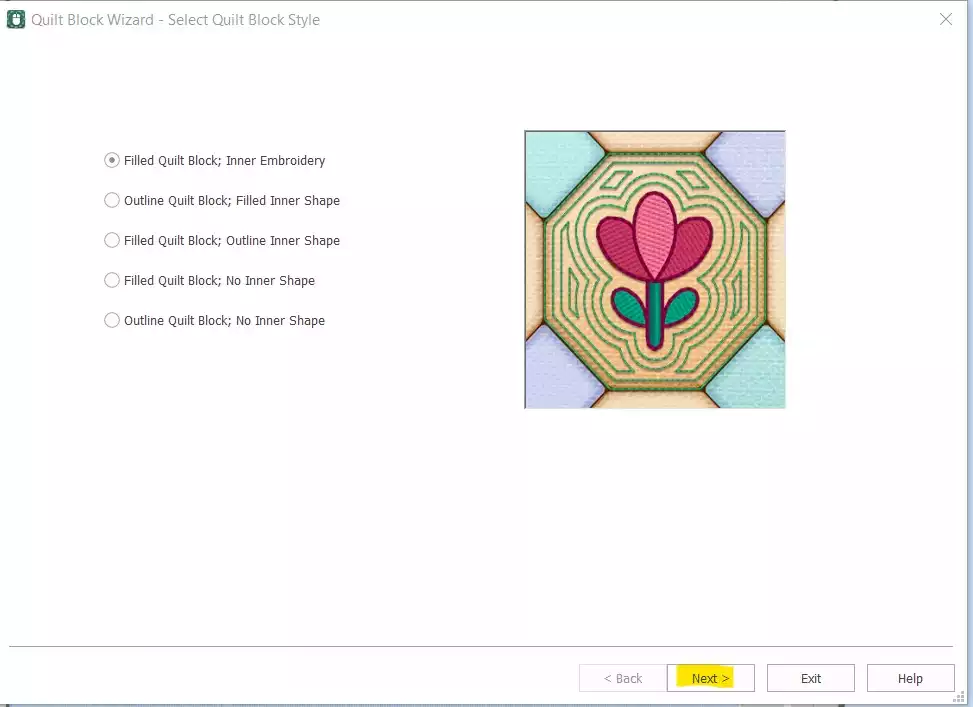
- Aller à Créer → Bloc de quilt et select Bloc de quilt rembourré : Embroidery intérieureCliquez sur Suivant.
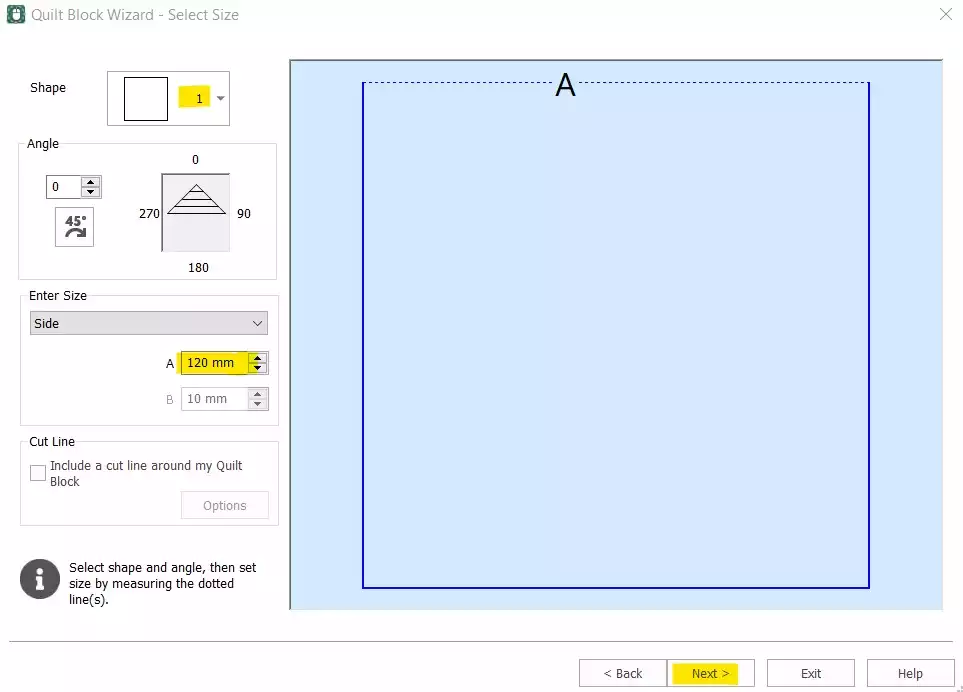
- Select Forme 1 (carré) et sélectionnez le côté 120 mmCliquez sur Suivant.
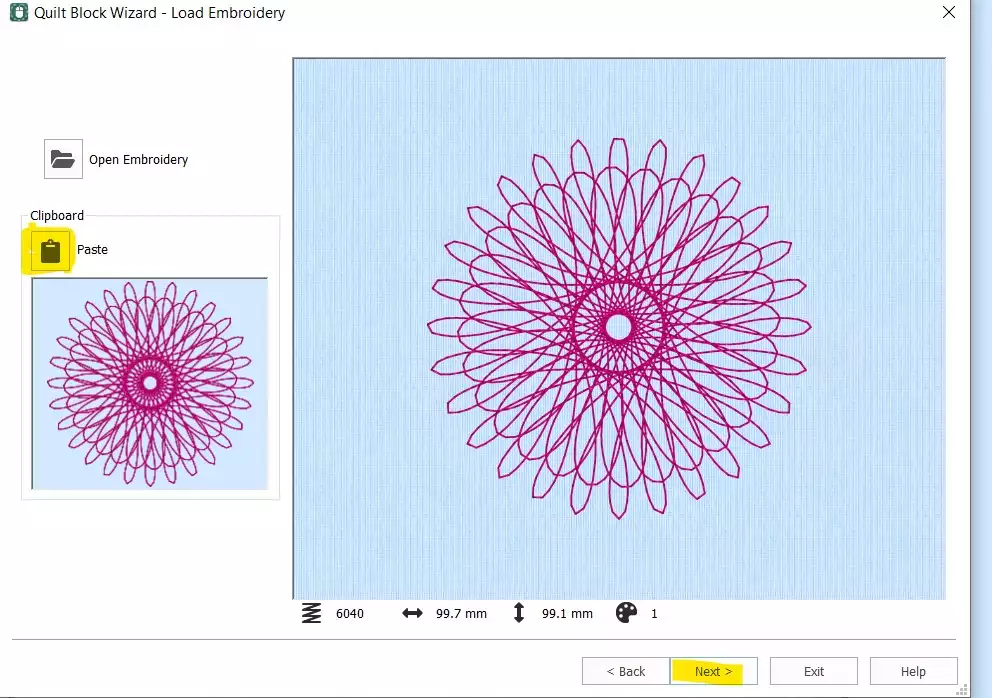
- Cliquez Coller pour insérer le Spiro à partir du presse-papiers. Cliquez sur Suivant.
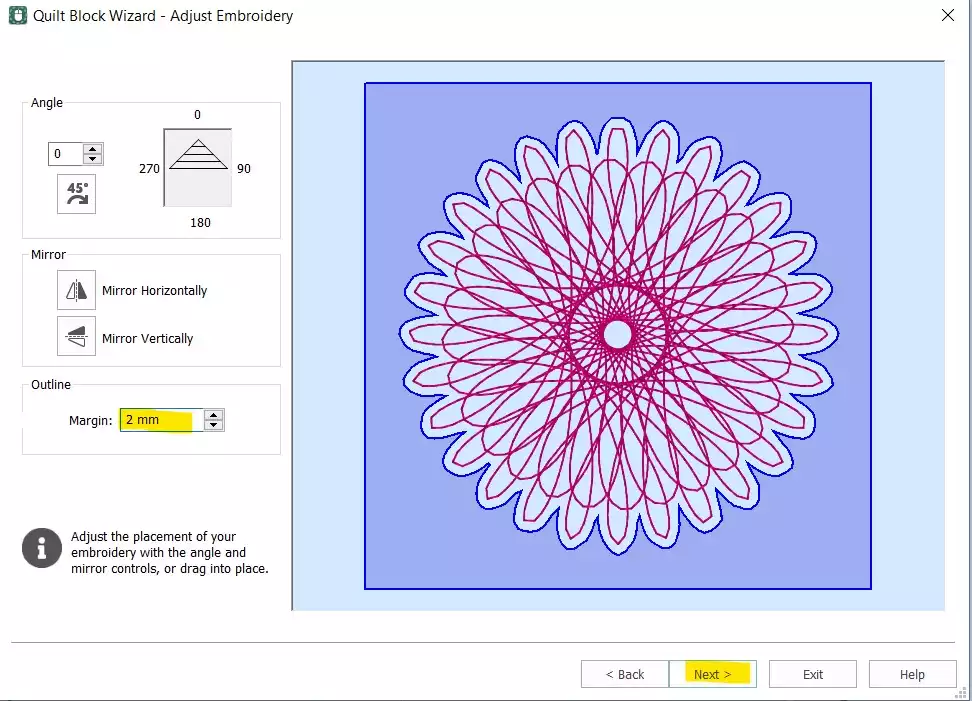
- Définir le Marge de 2 mmCliquez sur Suivant.
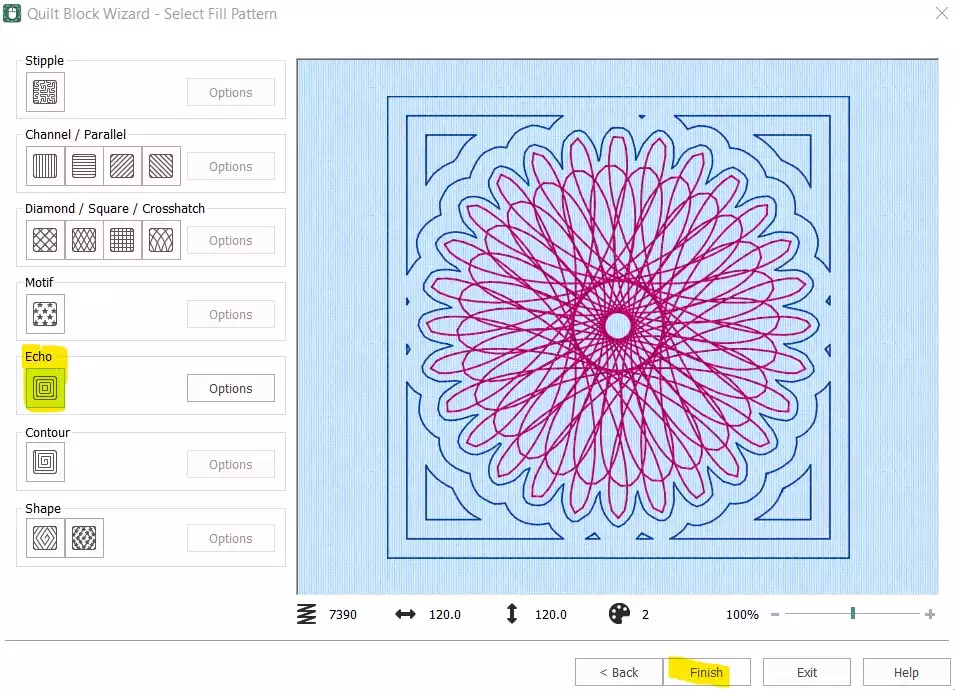
- Select Écho et cliquez sur Terminer.
Nettoyer et finaliser l'ordre des points
- Le bloc de quilt est désormais créé, mais il reste encore à supprimer le Spiro initial, qui était isolé, et à ajuster l'ordre des points avant que le motif ne soit prêt à être exporté.
- Dans la bande de film, select première couleur (le Spiro d'origine), cliquez avec le bouton droit de la souris, puis choisissez Supprimer. Vous ne devriez plus avoir que le bloc de quilt avec le motif Spiro intégré. Cliquez avec le bouton droit de la souris sur la embroidery la bande de film et select Désélectionner.
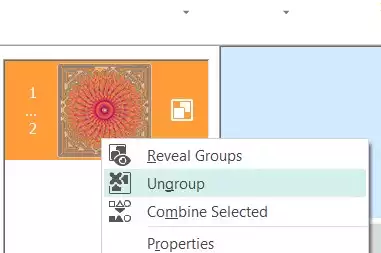
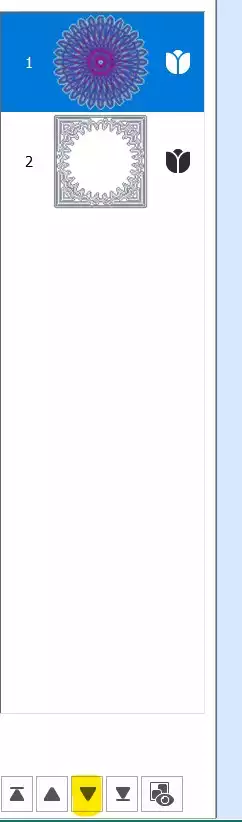
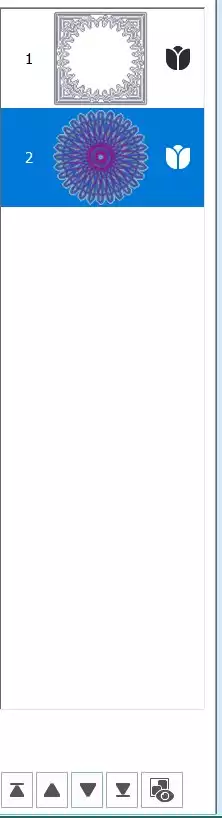
- Select première partie (le Spiro) et utilisez le touche fléchée vers le bas en bas de la bande de film pour la faire descendre dans l'ordre de couture.
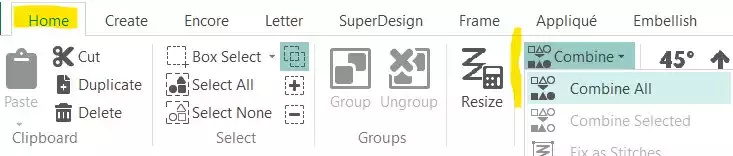
- Aller à la page Onglet Accueil and click Fusionner → Fusionner tout.
Enregistrer et exporter
- Votre bloc de quilt Spiro est terminé. Enregistrez le fichier de travail, puis exportez-le dans le format de votre choix — par exemple, .vp3.