


Crea un blocco per quilt "Spiro" con il Quilt Block Wizard
CREATIVATE Educazione
15 luglio 2025
Crea un blocco per quilt "Spiro" con il Quilt Block Wizard
Lo strumento " Quilt Block Wizard " e lo strumento "Spiro" formano una combinazione sorprendentemente potente. Il risultato appare intricato e complesso, ma, come vedrete, si ottiene con pochi semplici passaggi. È una tecnica fantastica da avere nel proprio arsenale per i blocchi di quilt, i pannelli decorativi o qualsiasi progetto che richieda un disegno geometrico di grande impatto.
Cosa ti serve
- Creativate Extra Elite (Windows o Mac)
Istruzioni
Crea il disegno a spirale
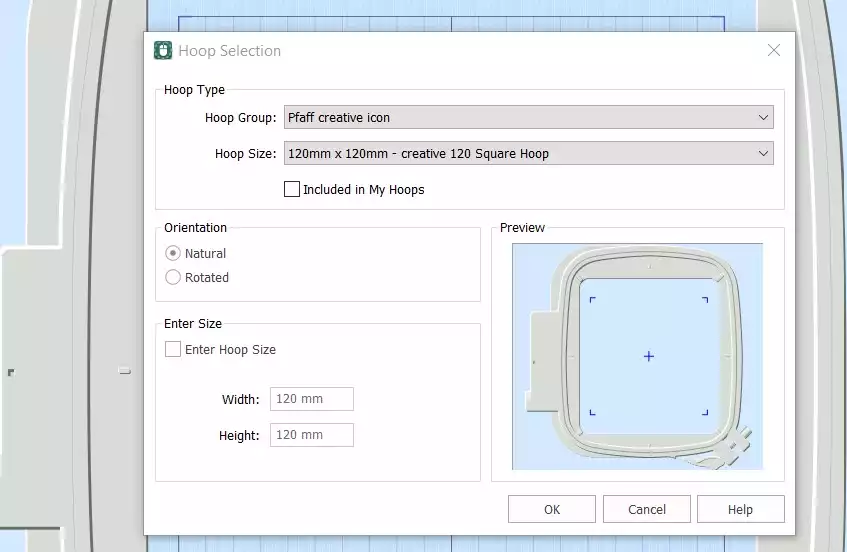
- Apri il software " Creativate " (Embroidery ), seleziona Tela bianca, e impostare la dimensione del cerchio su 120 mmFare clic OK.
- Vai al sito Scheda Crea e fare clic su Spiro. Quando si apre la finestra di dialogo, impostare la dimensione su 100 mm e fare clic su A casoFare clic OK sul messaggio di avviso: verrà generato un nuovo Spiro. Continua a cliccare A caso finché non trovi un disegno che ti piace. Puoi anche usare le maniglie per perfezionare manualmente la forma. Clicca OK una volta terminato.
Suggerimento: per una guida completa allo Spiro Wizard, digita "Spiro" nella funzione di ricerca di Studio.
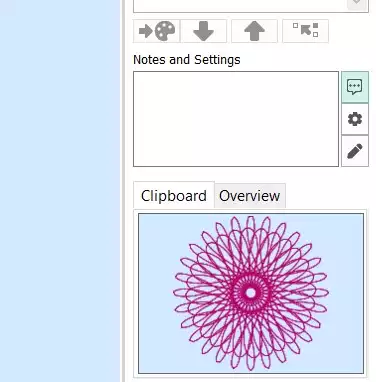
- Vai alla scheda Home e fai clic su Copia. Lo Spiro verrà ora salvato negli appunti.
Realizza il blocco per la trapunta
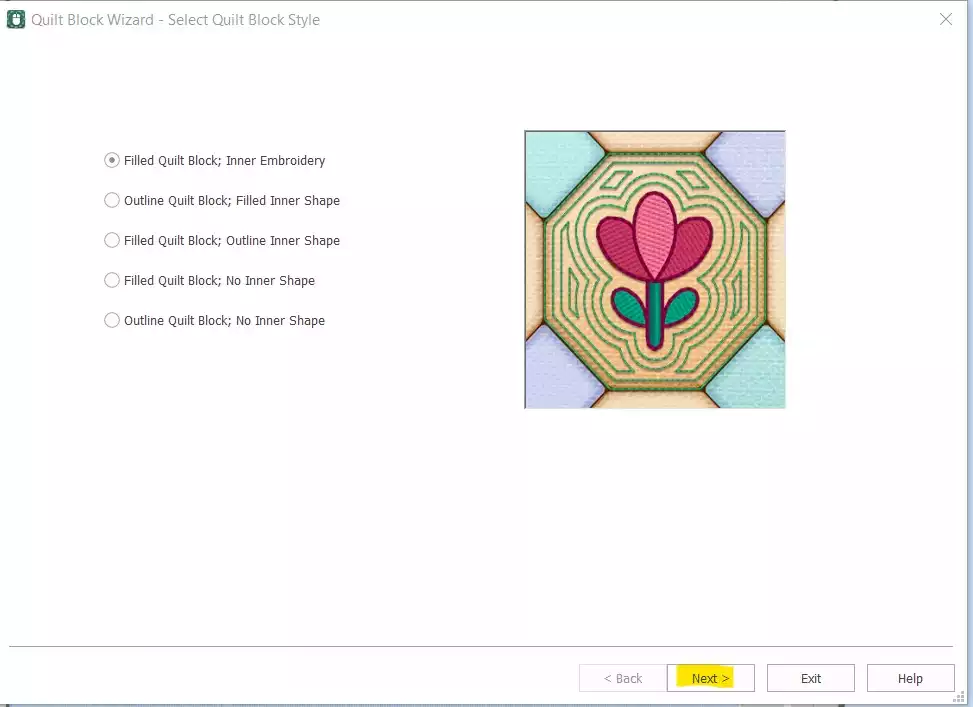
- Vai a Crea → Blocco di trapunta e select Blocco di trapunta imbottito: interno EmbroideryFare clic Avanti.
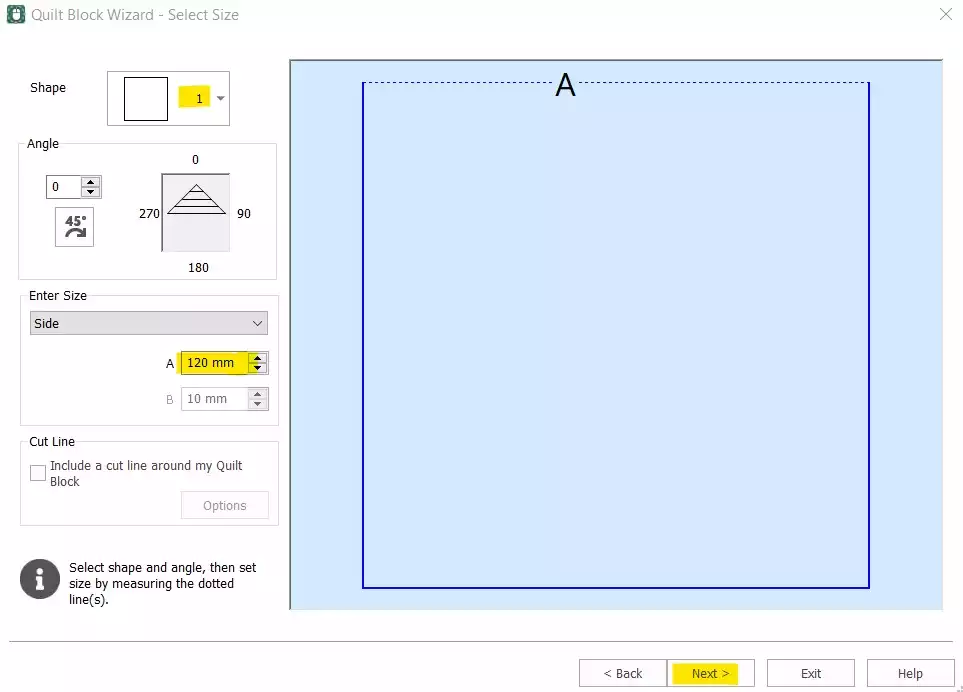
- Select Forma 1 (quadrata) e impostare il lato su 120 mmFare clic Avanti.
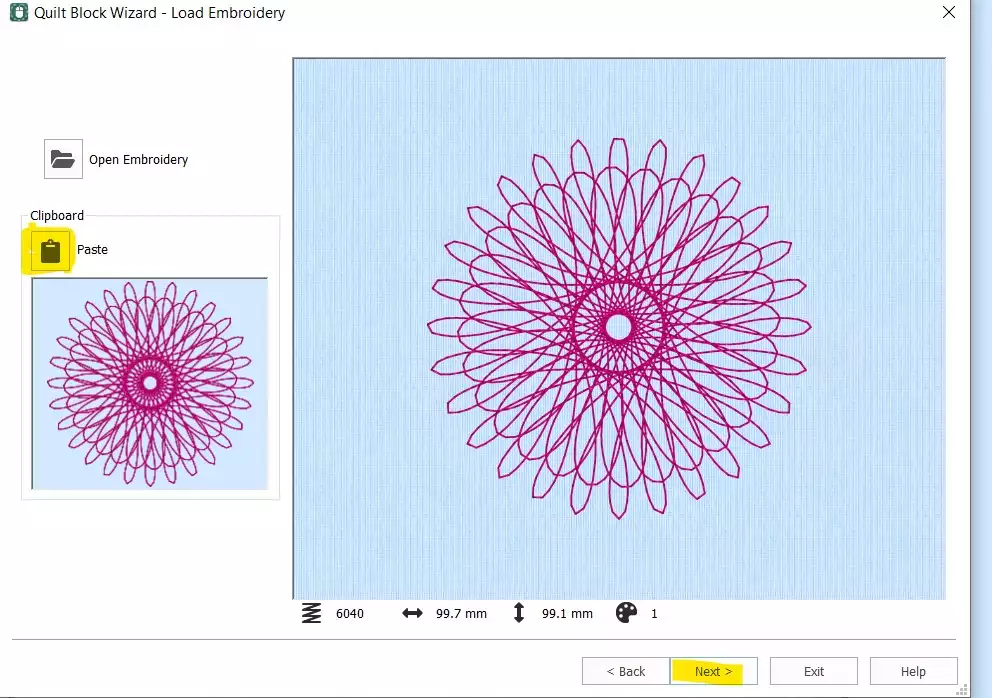
- Clic Incolla per inserire lo Spiro dagli appunti. Fai clic su Avanti.
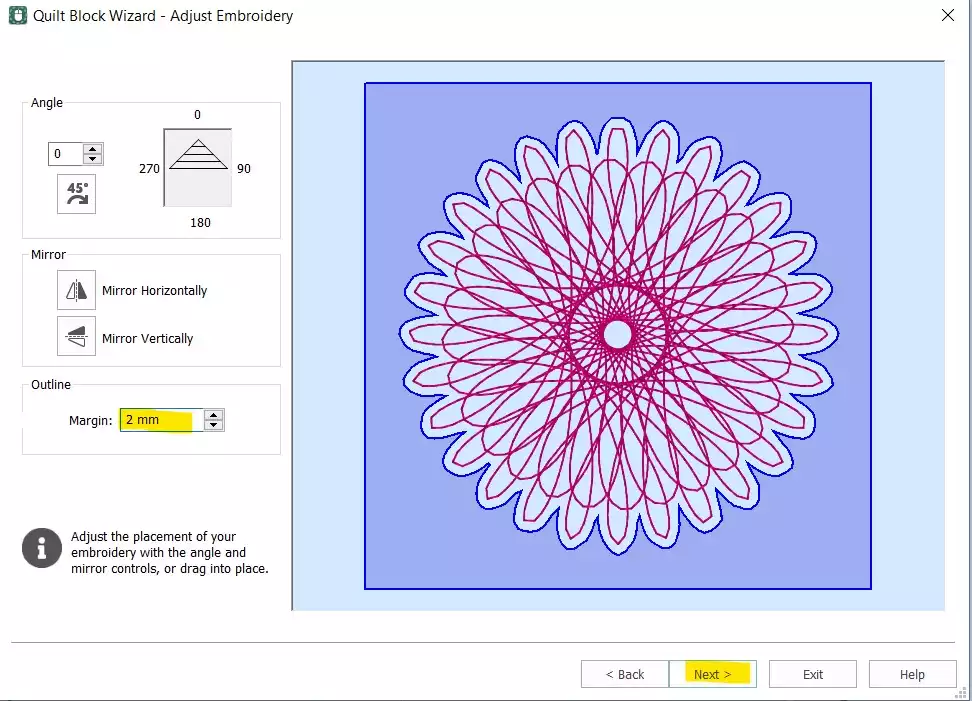
- Imposta il Margine di 2 mmFare clic Avanti.
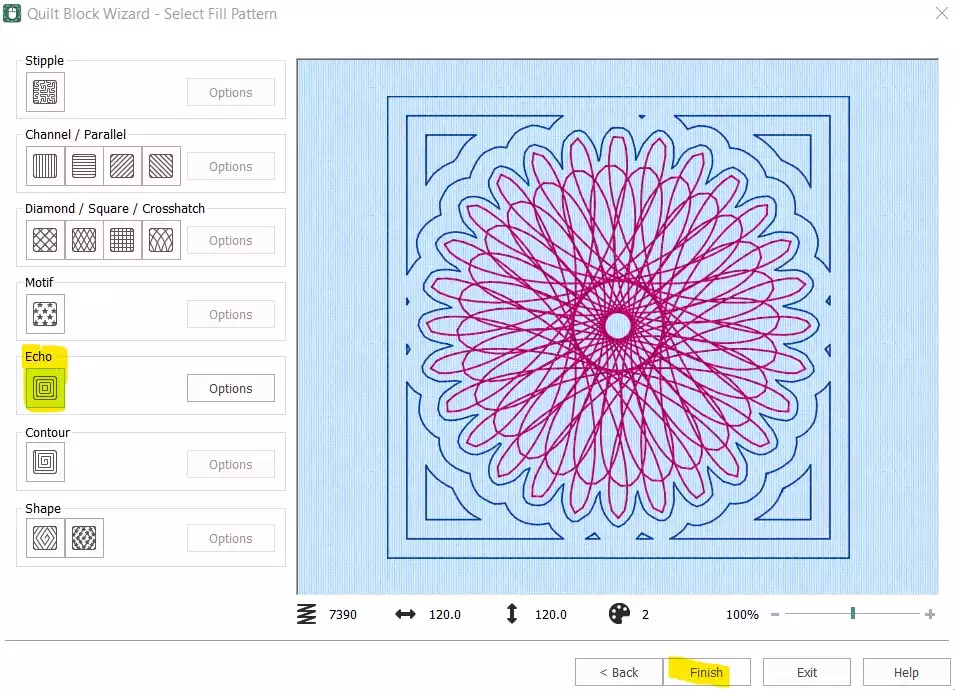
- Select Echo e fare clic su Fine.
Pulizia e completamento della sequenza di punti
- Il blocco della trapunta è ora completato, ma occorre ancora rimuovere lo Spiro originale indipendente e modificare l’ordine dei punti prima che il disegno sia pronto per l’esportazione.
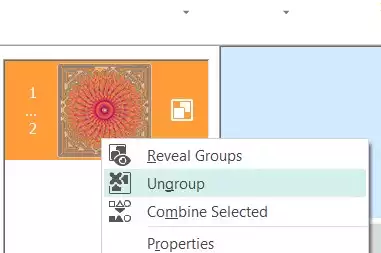
- Nella sezione "Film Strip", select , seleziona la prima immagine a colori (lo Spiro originale), fai clic con il tasto destro del mouse e scegli Cancellare. A questo punto dovresti avere solo il blocco di quilt con lo Spiro incorporato. Fai clic con il tasto destro del mouse sull’ embroidery e nella Film Strip e select Separa dal gruppo.
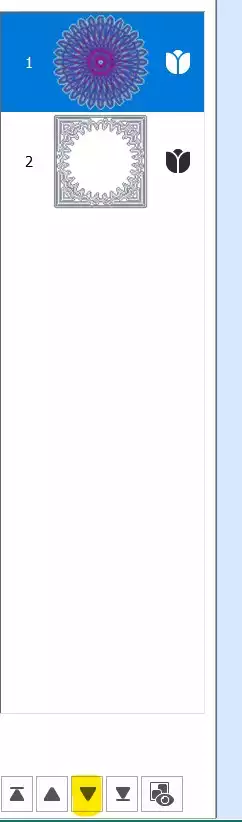
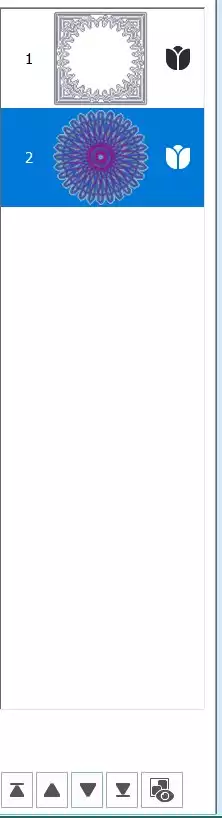
- Select la prima parte (lo Spiro) e utilizzare il tasto freccia giù nella parte inferiore della striscia di pellicola per spostarla più in basso nell'ordine di cucitura.
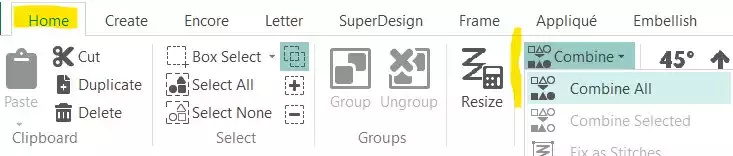
- Vai al sito Scheda "Home" e fare clic su Unisci → Unisci tutto.
Salva ed esporta
- Il tuo blocco di quilt Spiro è pronto. Salva il file di lavoro, quindi esportalo nel formato che preferisci — ad esempio, .vp3.