


Maak een Spiro-quiltblok met de Quilt Block Wizard
CREATIVATE Onderwijs
15 juli 2025
Maak een Spiro-quiltblok met de Quilt Block Wizard
De ‘ Quilt Block Wizard ’ en de ‘Spiro’-tool vormen een verrassend krachtige combinatie. Het resultaat ziet er gedetailleerd en complex uit — maar zoals je zult zien, is het in slechts een paar eenvoudige stappen te realiseren. Het is een geweldige techniek om in je arsenaal te hebben voor quiltblokken, decoratieve panelen of elk ander project dat om een opvallend geometrisch ontwerp vraagt.
Wat je nodig hebt
- Creativate Extra Elite (Windows of Mac)
Instructies
Maak het Spiro-ontwerp
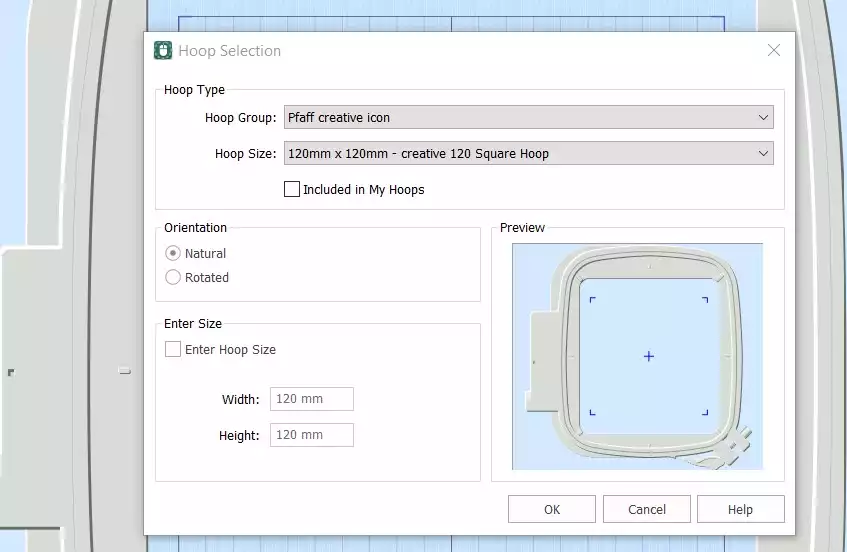
- Open Creativate Embroidery Software, kies Leeg doek, en stel de hoepelmaat in op 120 mm. Klik op OK.
- Ga naar de Tabblad Maken en klik op Spiro. Zodra het dialoogvenster wordt geopend, stel je de grootte in op 100 mm en klik op Willekeurig. Klik op OK op de waarschuwing — er wordt een nieuwe Spiro gegenereerd. Blijf klikken Willekeurig totdat je een ontwerp vindt dat je mooi vindt. Je kunt ook de handvatten gebruiken om de vorm handmatig verder aan te passen. Klik op OK wanneer je klaar bent.
Tip: Voor een volledige handleiding bij de Spiro Wizard typ je "Spiro" in de zoekfunctie van Studio.
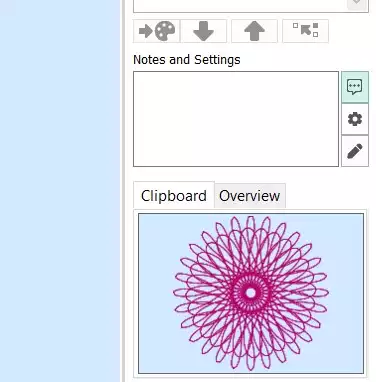
- Ga naar het tabblad ‘Home ’ en klik op ‘Kopiëren’. De Spiro wordt nu naar het klembord gekopieerd.
Maak het quiltblok
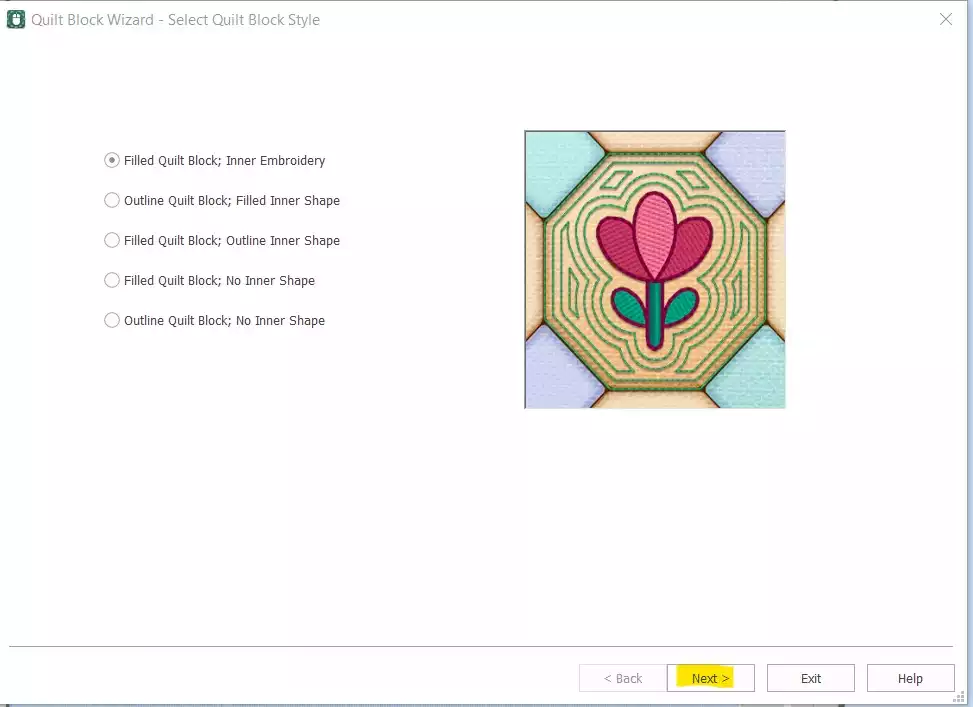
- Ga naar Maken → Quiltblok en select Gevuld quiltblok: binnenkant Embroidery. Klik op Volgende.
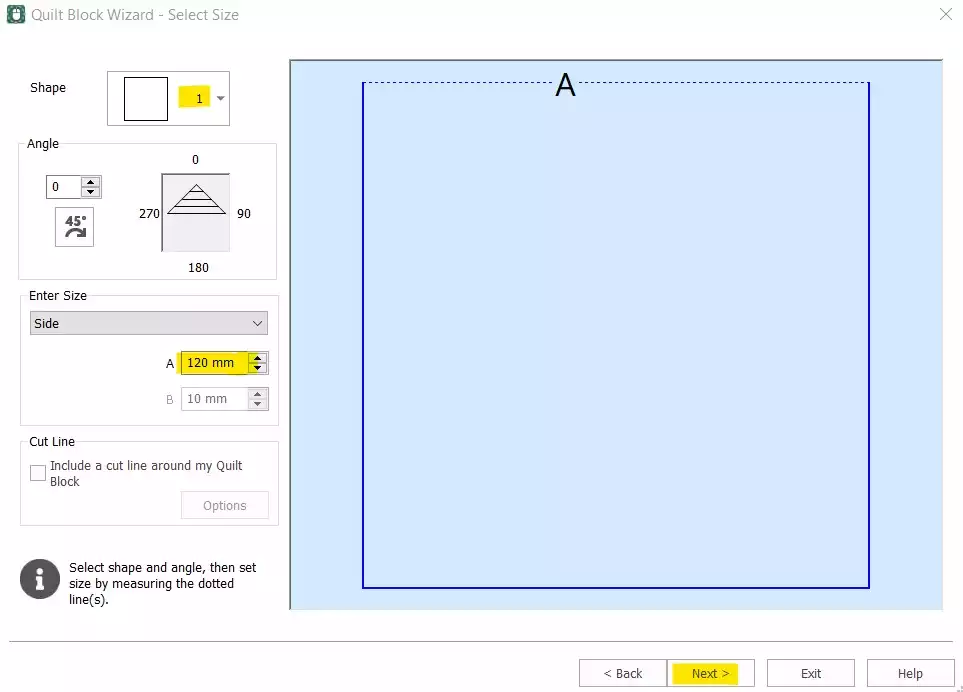
- Select Vorm 1 (vierkant) en stel de ‘Side’ in op 120 mm. Klik op Volgende.
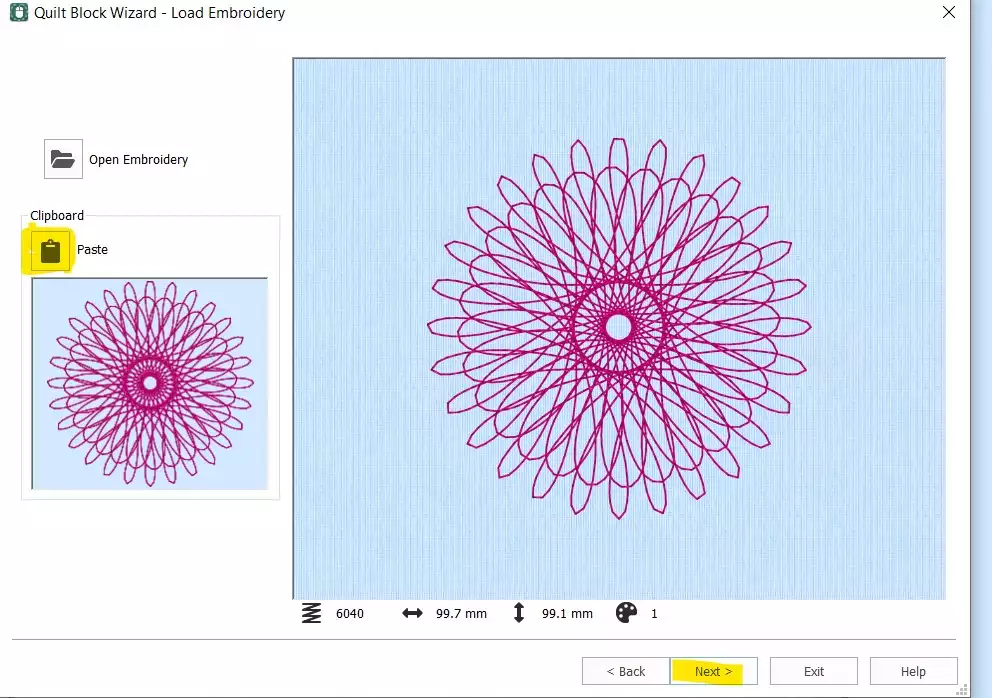
- Klik op Plakken om de Spiro vanuit het klembord in te voegen. Klik op Volgende.
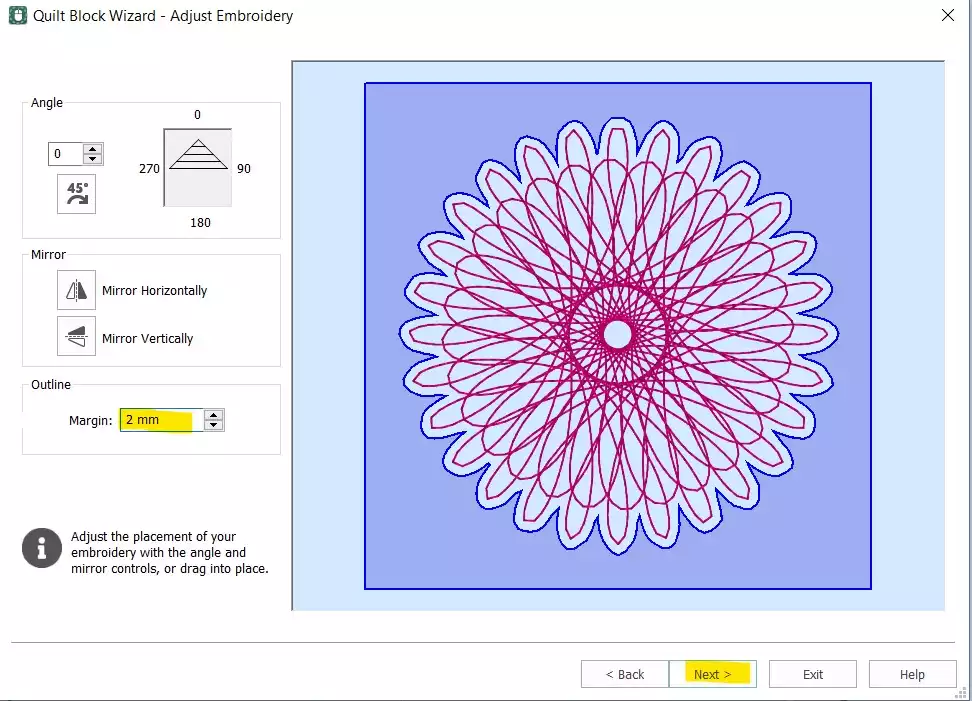
- Stel de Marge tot 2 mm. Klik op Volgende.
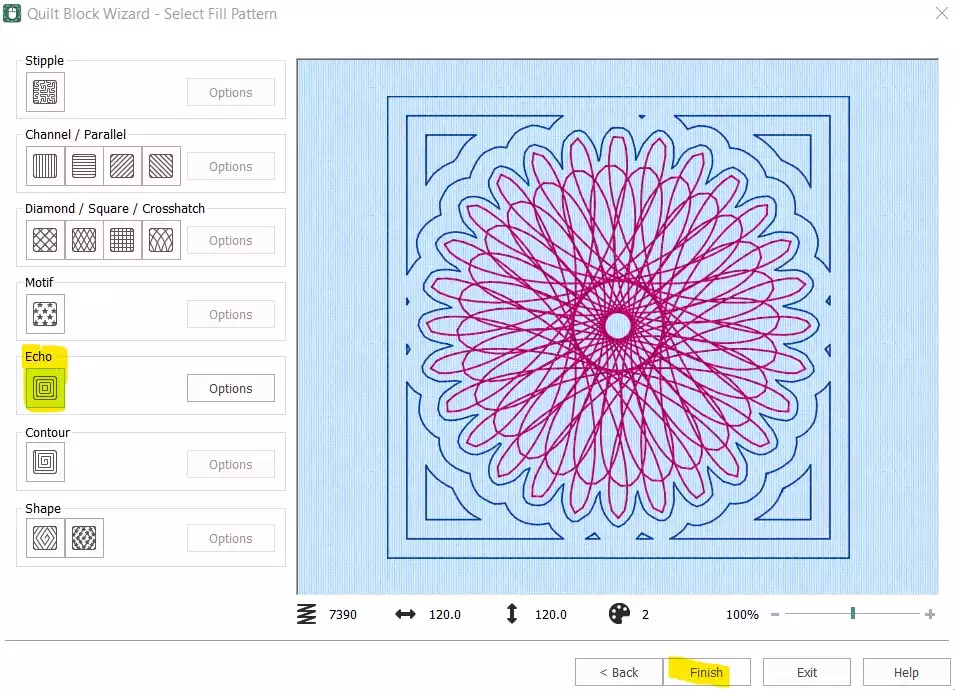
- Select Echo en klik op Voltooien.
De steekvolgorde opschonen en afronden
- Het quiltblok is nu samengesteld — maar de oorspronkelijke, op zichzelf staande Spiro moet nog worden verwijderd en de steekvolgorde moet worden aangepast voordat het ontwerp klaar is om te worden geëxporteerd.
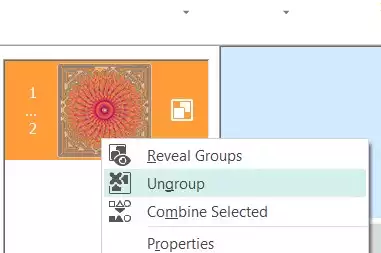
- Klik in de Film Strip op ‘ select ’ (de eerste kleur, de originele Spiro), klik met de rechtermuisknop en kies Verwijder. Je zou nu alleen nog het quiltblok met de ingebedde Spiro moeten hebben. Klik met de rechtermuisknop op de ‘ embroidery ’ in de filmstrip en select Groep opheffen.
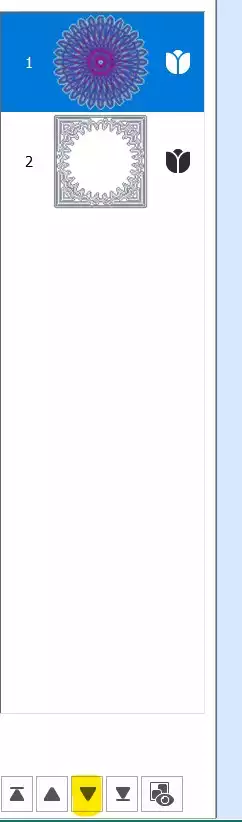
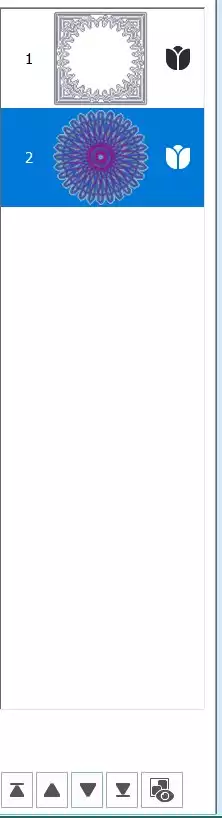
- Select het eerste deel (de Spiro) en gebruik de pijl-omlaagtoets onderaan de filmstrip om deze in de steekvolgorde naar beneden te verplaatsen.
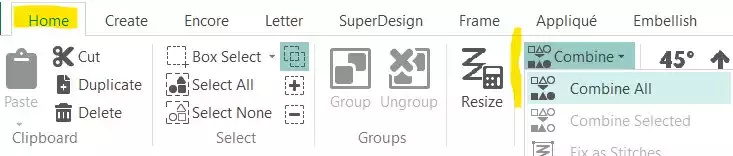
- Ga naar de Tabblad Start en klik op Samenvoegen → Alles samenvoegen.
Opslaan en exporteren
- Je Spiro-quiltblok is klaar. Sla het werkbestand op en exporteer het vervolgens in het formaat van je keuze — bijvoorbeeld .vp3.