


Lag en Spiro-quiltblokk med Quilt Block Wizard
CREATIVATE Utdannelse
15. juli 2025
Lag en Spiro-quiltblokk med Quilt Block Wizard
De Quilt Block Wizard og Spiro-verktøyet er en overraskende kraftig kombinasjon. Resultatet ser intrikat og komplekst ut – men som du vil se, kommer det sammen på bare noen få enkle trinn. Det er en flott teknikk å ha i verktøykassen din for quiltblokker, dekorative paneler eller ethvert prosjekt som krever et slående geometrisk design.
Det du trenger
- Creativate Extra eller Elite (Windows eller Mac)
Instruksjoner
Lag Spiro-designet
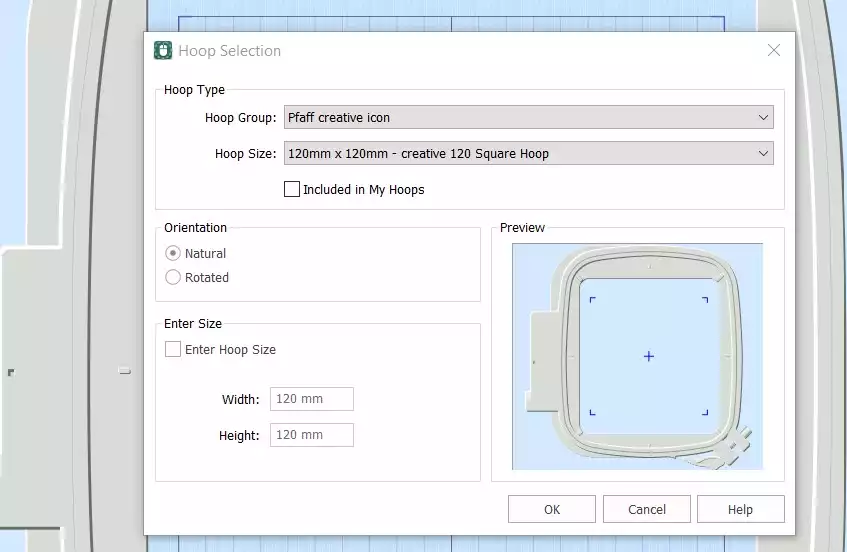
- Åpne Creativate Embroidery Programvare, velg Blankt lerret, og sett rammestørrelsen til 120 mmKlikk OK.
- Gå til Opprett fane og klikk SpiroNår dialogboksen åpnes, setter du Størrelse til 100 mm og klikk TilfeldigKlikk OK på advarselsmeldingen – en ny Spiro vil bli generert. Fortsett å klikke Tilfeldig til du finner et design du liker. Du kan også bruke håndtakene til å finjustere formen manuelt. Klikk OK når den er ferdig.
Tips: For en fullstendig guide til Spiro Wizard, skriv «Spiro» i søkefunksjonen i Studio.
- Gå til Hjem-fanen og klikk på Kopier . Spiro-enheten vil nå bli lagret på utklippstavlen.
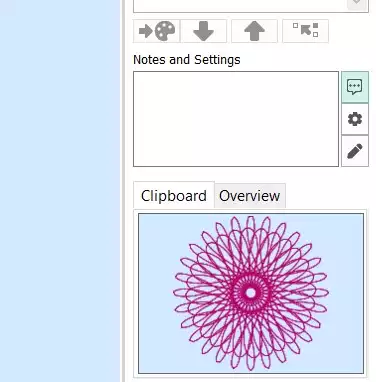
Bygg dyneblokken
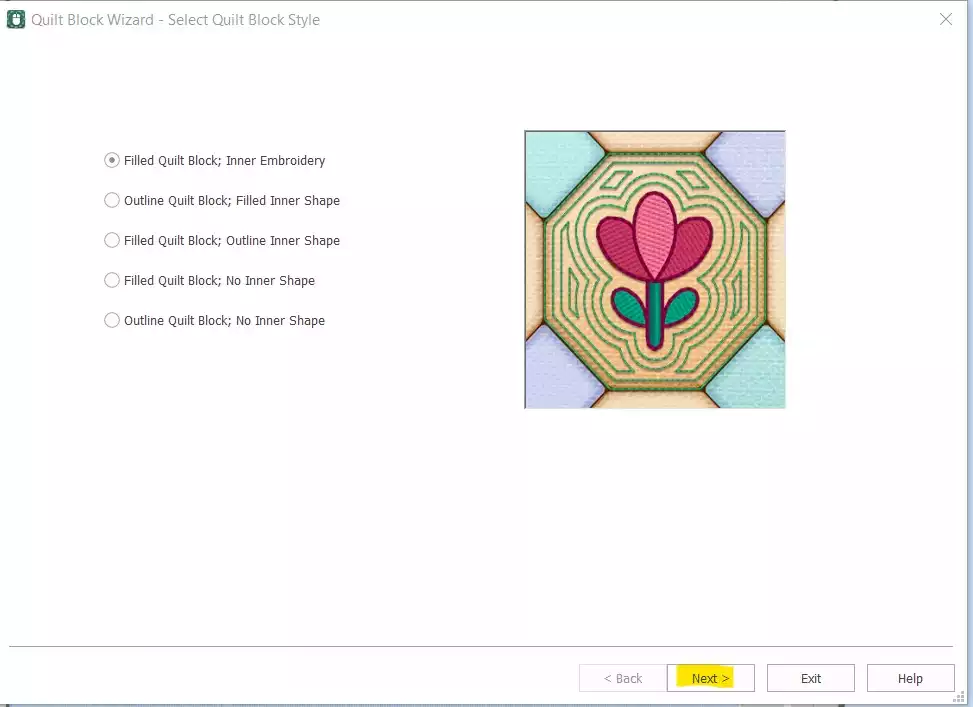
- Gå til Lag → Quiltblokk og select Fylt quiltblokk: Indre EmbroideryKlikk Neste.
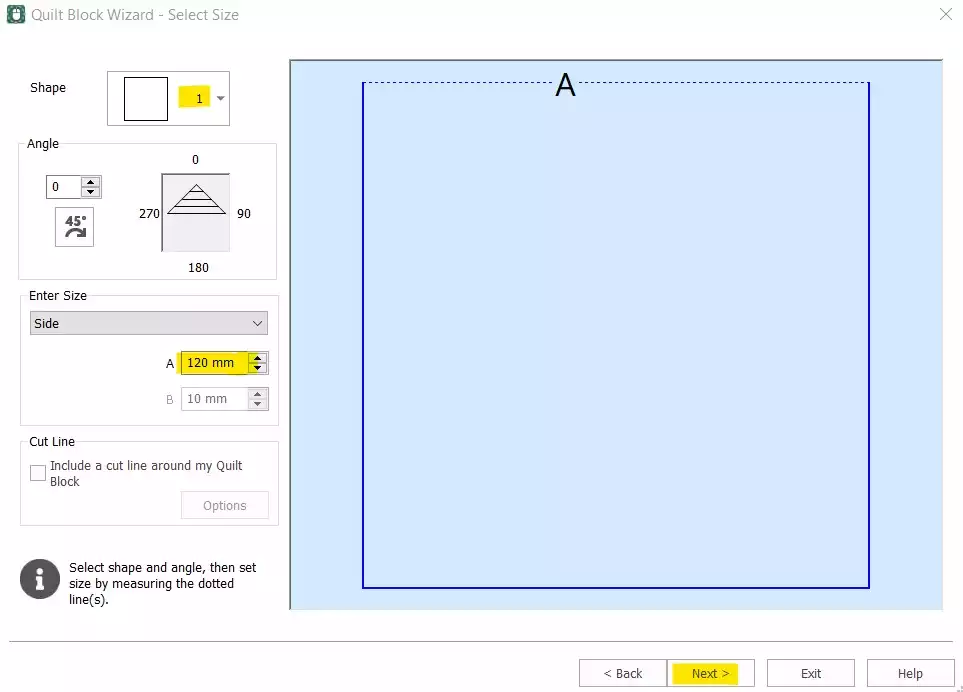
- Select Form 1 (Firkant) og sett siden til 120 mmKlikk Neste.
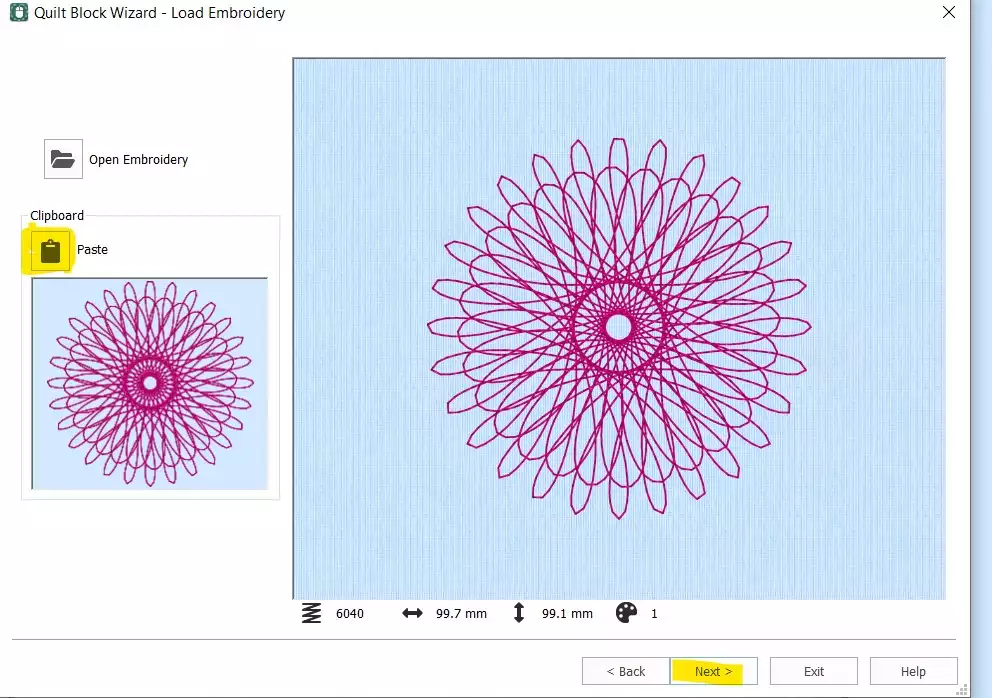
- Klikk Lim inn for å sette inn Spiro-en fra utklippstavlen. Klikk Neste.
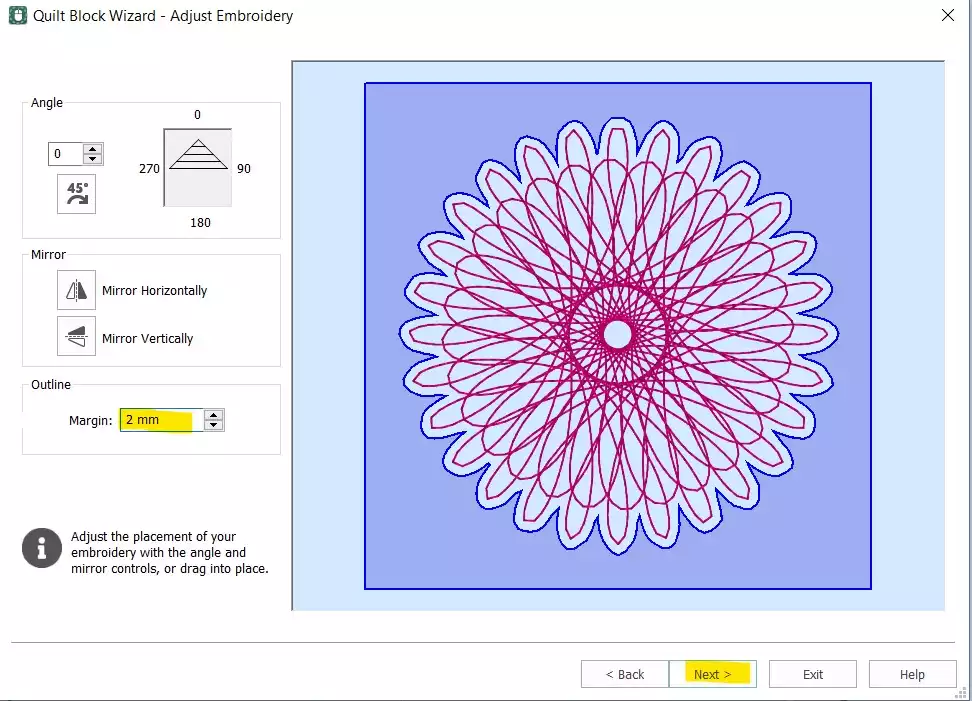
- Sett inn Margin til 2 mmKlikk Neste.
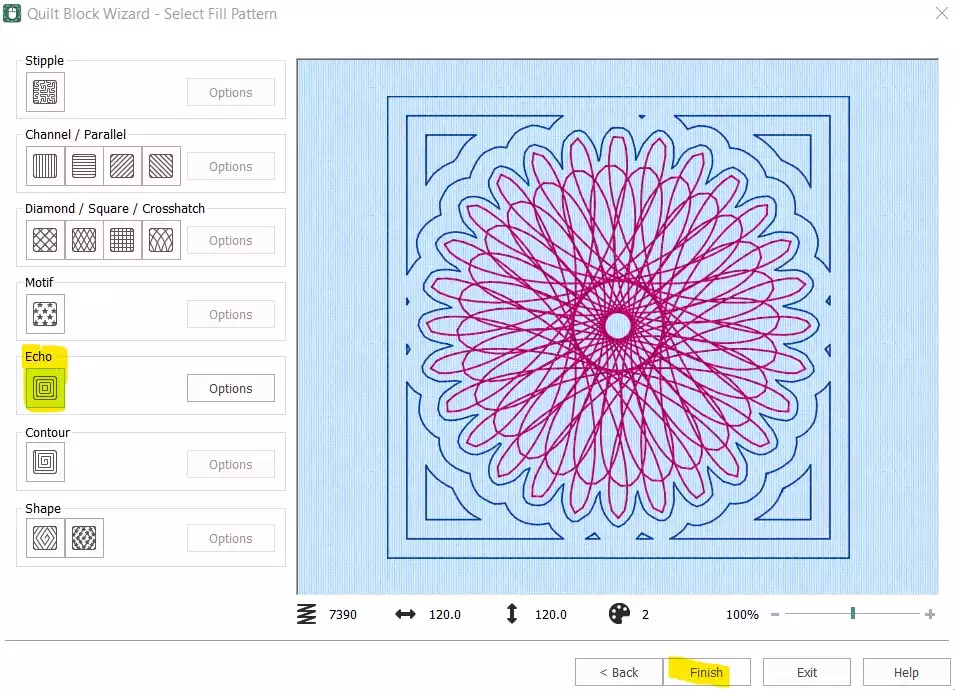
- Select Ekko og klikk Fullfør.
Rydd opp og fullfør stingrekkefølgen
- Quiltblokken er nå bygget – men den originale frittstående Spiro-en må fortsatt fjernes, og stingrekkefølgen må justeres før designet er klart til eksport.
- I filmstripen, select den første fargen (den originale Spiro), høyreklikk og velg SlettDu skal nå bare ha quiltblokken med den innebygde Spiro-en igjen. Høyreklikk på embroidery i filmstripen og select Opphev gruppering.
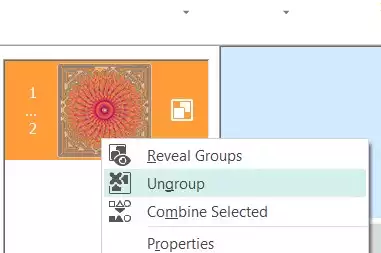
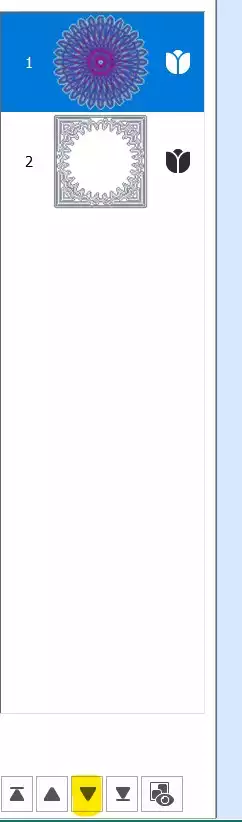
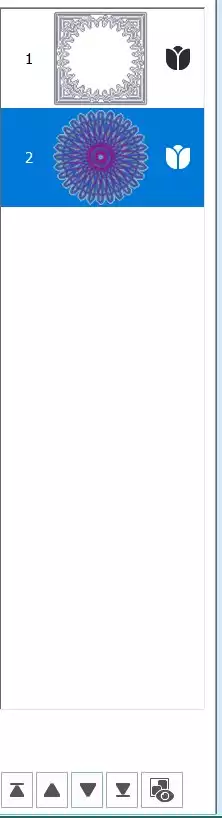
- Select den første delen (Spiroen) og bruk pil ned-tasten nederst på filmstripen for å flytte den ned i stingrekkefølgen.
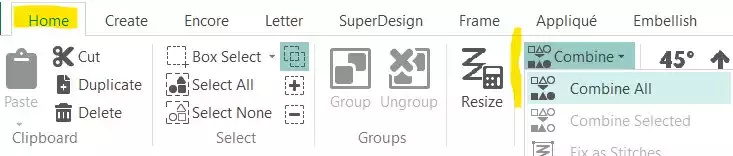
- Gå til Hjem-fanen og klikk Kombiner → Kombiner alle.
Lagre og eksporter
- Spiro-quiltblokken din er ferdig. Lagre arbeidsfilen, og eksporter den deretter i ønsket format – for eksempel .vp3 .