


Skapa ett Spiro-quiltblock med hjälp av Quilt Block Wizard
CREATIVATE Utbildning
15 juli 2025
Skapa ett Spiro-quiltblock med hjälp av Quilt Block Wizard
Verktygen ” Quilt Block Wizard ” och ”Spiro” utgör en förvånansvärt kraftfull kombination. Resultatet ser intrikat och komplext ut – men som du kommer att se går det att åstadkomma med bara några enkla steg. Det är en utmärkt teknik att ha i sin verktygslåda för quiltblock, dekorativa paneler eller vilket projekt som helst som kräver ett iögonfallande geometriskt mönster.
Vad du behöver
- Creativate Extra eller Elite (Windows eller Mac)
Instruktioner
Skapa Spiro-designen
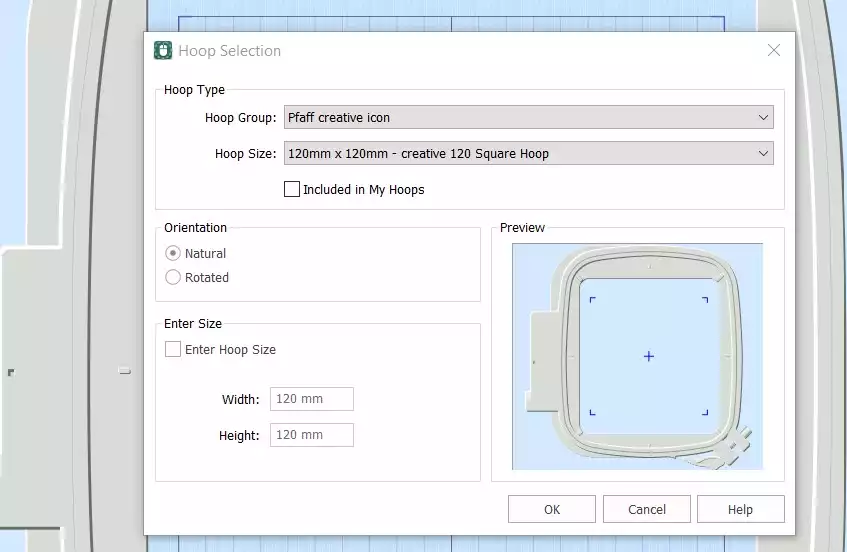
- Öppna Creativate Embroidery Software och välj Tom duk, och ställ in ringstorleken till 120 mmKlicka OK.
- Gå till Skapa flik och klicka på Spiro. När dialogrutan öppnas ställer du in storleken till 100 mm och klicka på SlumpmässigtKlicka OK när varningsmeddelandet visas – en ny Spiro kommer att skapas. Fortsätt att klicka Slumpmässigt tills du hittar en design som du gillar. Du kan också använda handtagen för att finjustera formen manuellt. Klicka på OK när du är klar.
Tips: Om du vill ha en fullständig guide till Spiro Wizard skriver du in ”Spiro” i sökfunktionen i Studio.
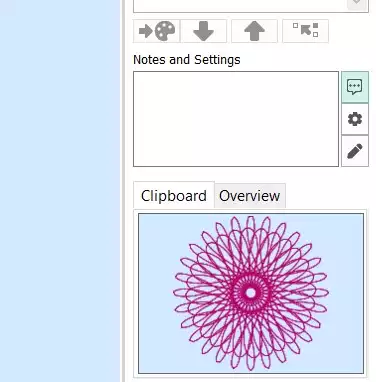
- Gå till fliken ”Hem ” och klicka på ”Kopiera”. Spiro sparas nu i urklipp.
Gör ett lapptäcksblock
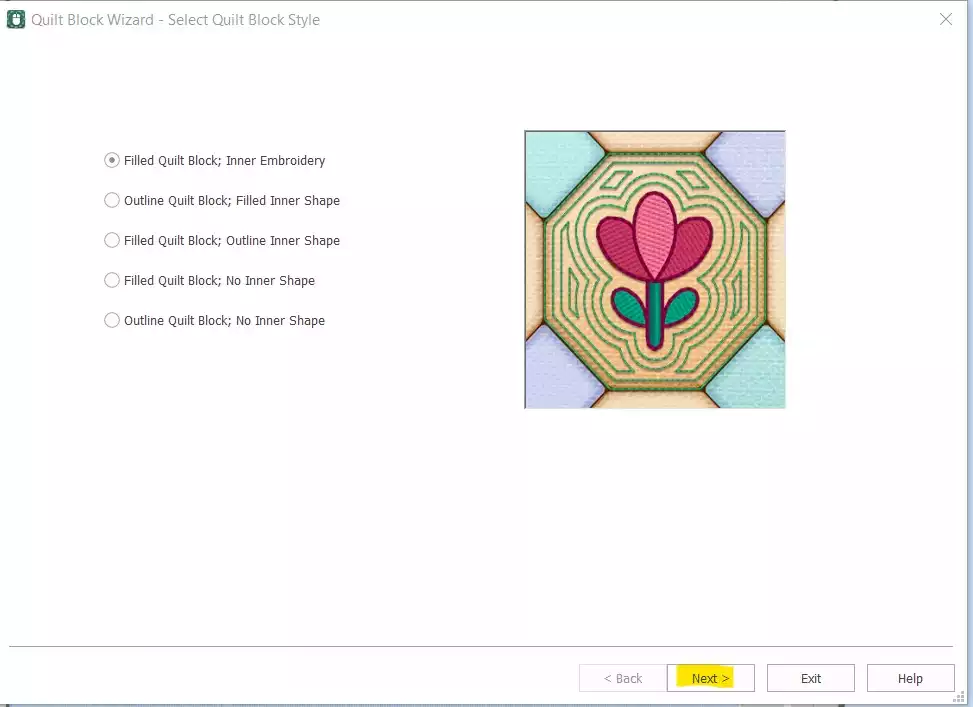
- Gå till Skapa → Quiltblock och select Fyllt lapptäcksblock: Inre EmbroideryKlicka Nästa.
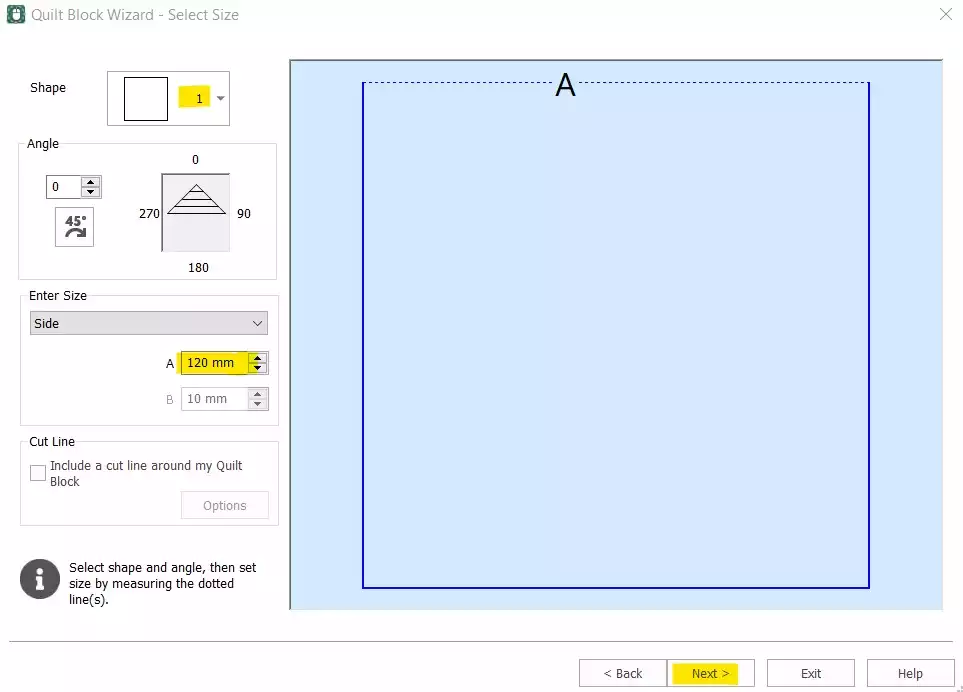
- Select Form 1 (fyrkant) och ställ in ”Side” på 120 mmKlicka Nästa.
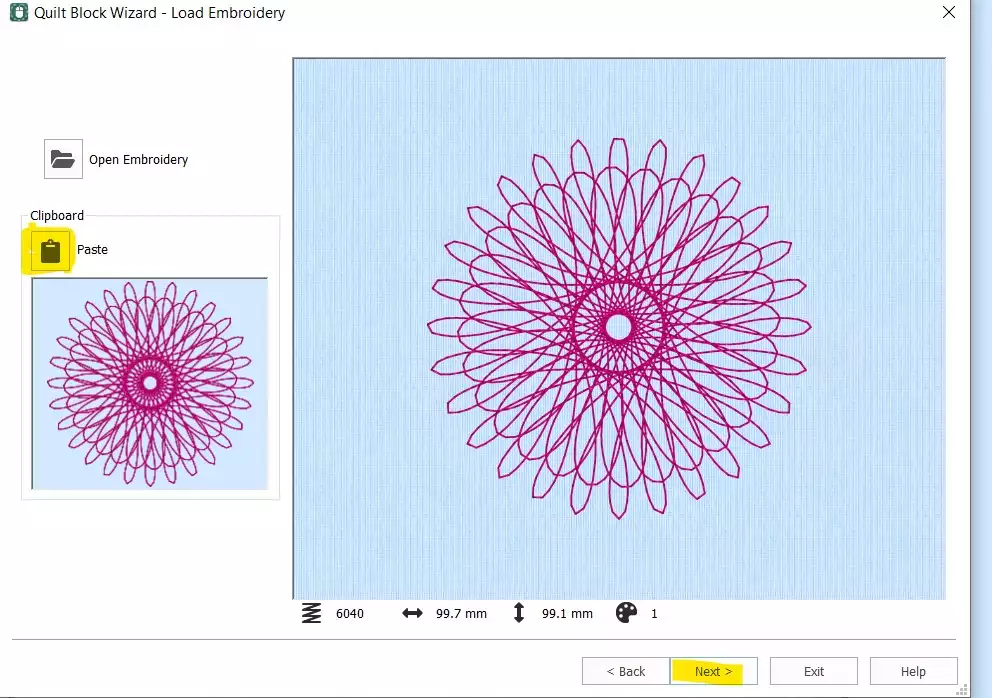
- Klick Klistra in för att infoga Spiro från urklipp. Klicka på Nästa.
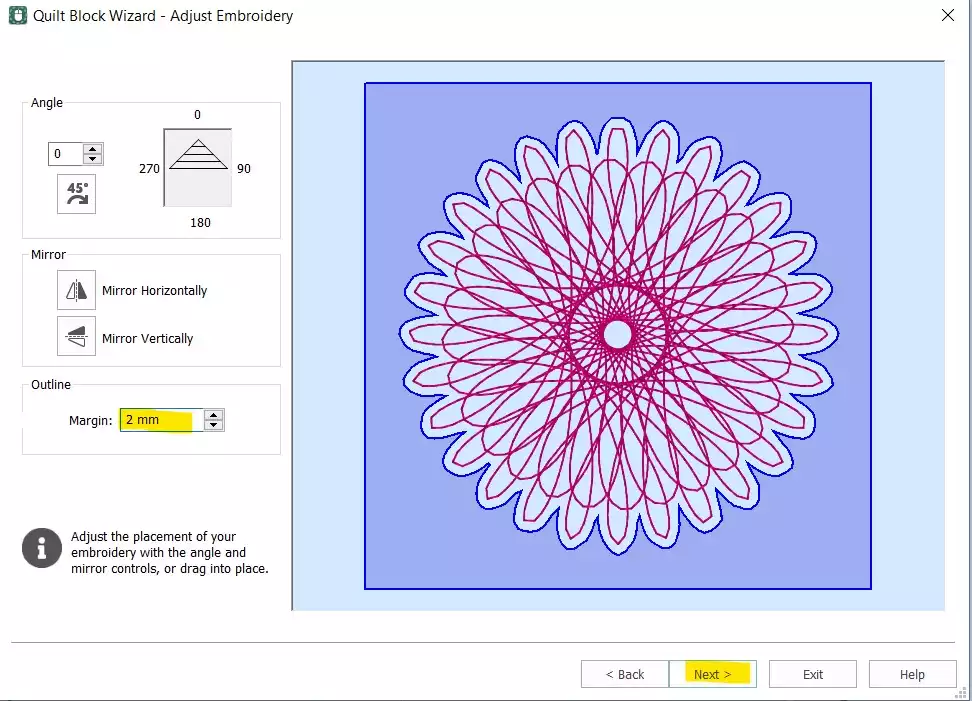
- Ställ in Marginal på 2 mmKlicka Nästa.
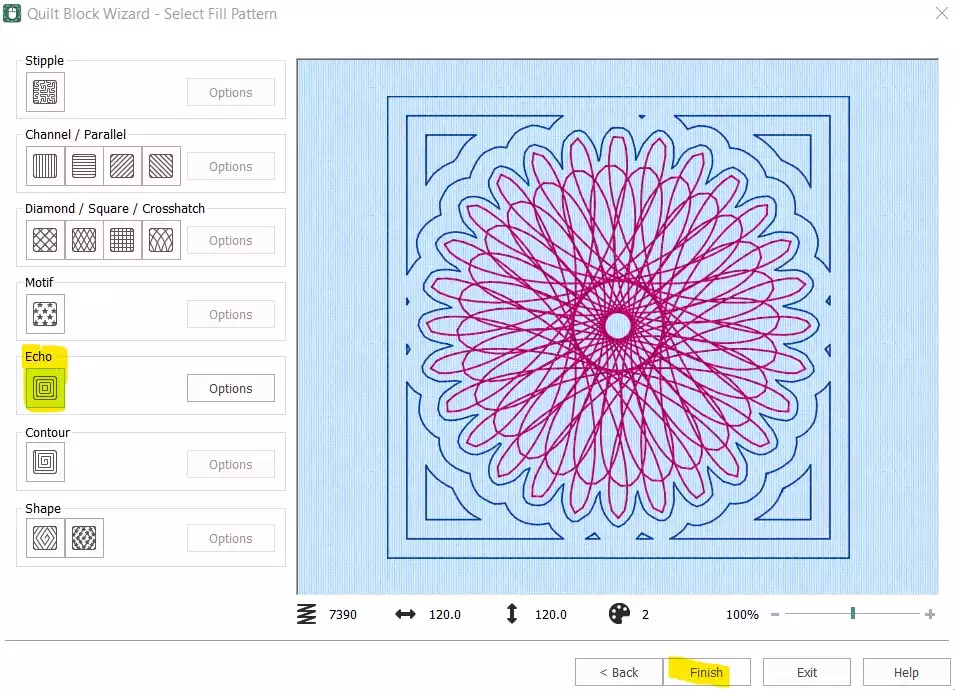
- Select Echo och klicka på Avsluta.
Rensa upp och slutföra sömordningen
- Quiltblocket är nu färdigställt – men det ursprungliga fristående Spiro-objektet måste fortfarande tas bort, och sömordningen måste justeras innan mönstret är klart för export.
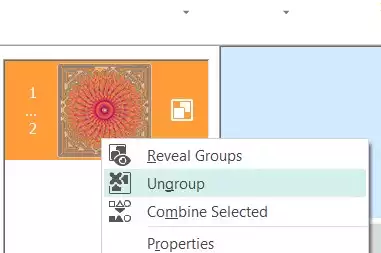
- I Film Strip, select , högerklicka på den första färgen (den ursprungliga Spiro) och välj Radera. Nu bör du bara ha kvar quiltblocket med den inbäddade Spiro-figuren. Högerklicka på ” embroidery ” i filmremsan och select Avmarkera gruppering.
- Select den första delen (Spiro) och använd nedåtpilen längst ner på filmremsan för att flytta den nedåt i sömningsordningen.
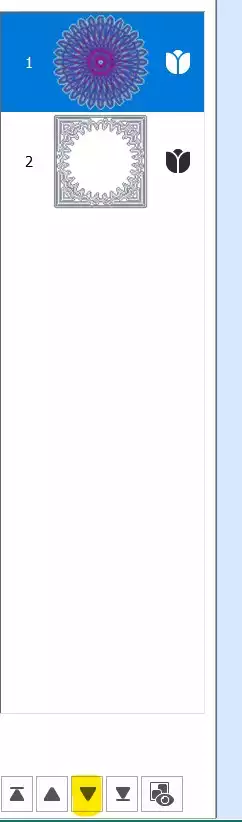
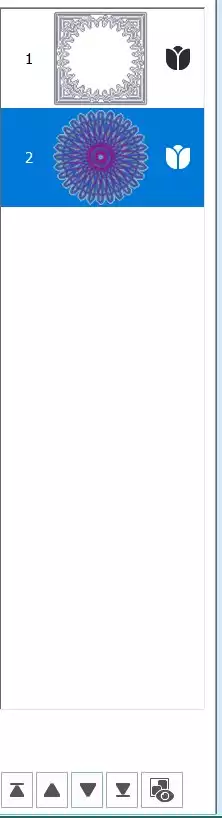
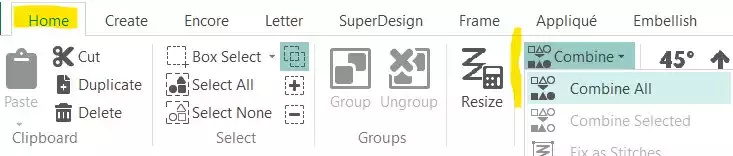
- Gå till Fliken Hem och klicka på Kombinera → Kombinera alla.
Spara och exportera
- Ditt Spiro-quiltblock är klart. Spara arbetsfilen och exportera den sedan i det format du föredrar – till exempel .vp3.