


Çapraz Dikiş Çarpı Embroidery Tasarımlarını Sayısallaştırma
CREATIVATE Eğitim
15 Temmuz 2025
Creativate Cross Stitcher’daki “Çarpma” Özelliğini Kullanarak Yansıtmalı Çapraz Dikiş Desenleri Oluşturun
Creativate ’ınElite üyeliğine dahil olan Cross Stitcher modülü, ayrıntılı ve güzel çapraz dikiş nakışları tasarlamanız için size güçlü araçlar sunar. İster kılavuzlu Sihirbazlar ve Yardımcılar’ı, ister uygulamalı manuel araçları tercih edin, Cross Stitcher’da her seviyeye uygun bir seçenek bulunur.
En heyecan verici özelliklerinden biri de “Multiply”dir — bu araç, çapraz dikiş tasarımlarınızı otomatik olarak yansıtıp tekrarlayarak, karmaşık görünse de oluşturulması şaşırtıcı derecede hızlı olan muhteşem simetrik desenler yaratır.
Çarpma İşlevini Etkinleştirme
Başlamak için, select adresinden Multiply (Windows ve Mac)uygulamasını kullanın. Uygulama etkinleştirildikten sonra, tercih ettiğiniz yansıma stilini seçin ve ardından “Oluştur”, “Harf” veya “Desen” sekmelerini kullanarak çarpı işaretleri ekleyin.
İpucu: Mevcut bir haç desenini kopyalayıp ardından “Çarpma Kullan” seçeneğini etkinleştirerek yapıştırabilirsiniz — bu, daha önce başladığınız tasarımlarla çalışmak için harika bir kısayoldur.

Çeşitli Stiller
Karşı Tarafa Yansıt
Aynalar, dikey merkez boyunca çaprazlar oluşturarak soldan sağa doğru mükemmel bir simetri yaratır.
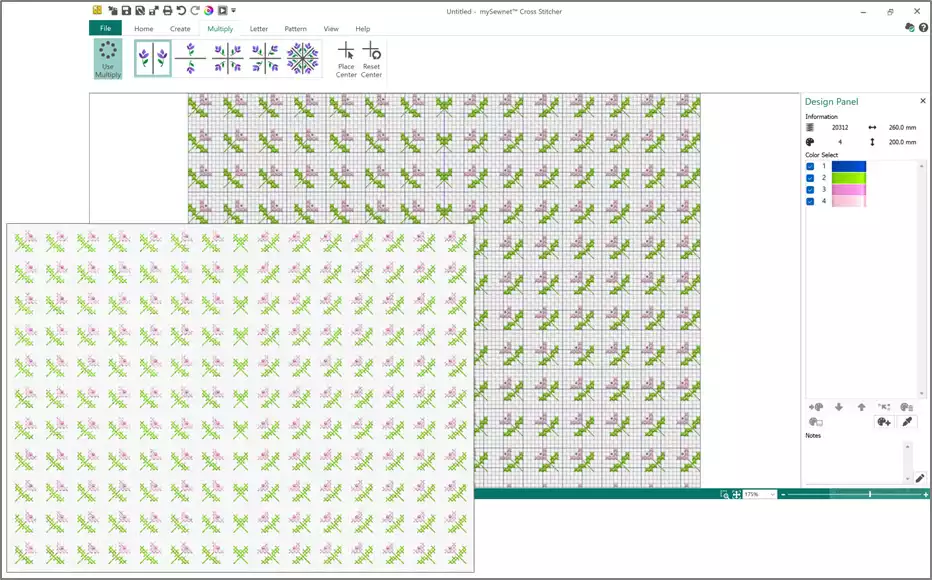
Örnek:
- Desenli Dolgu, Kategori: Karışık, Trellis 1 (yönlü desenli dolgu).

-
“Oluştur” sekmesinde, “Desen Dolgusu” kısmında “ select ” seçeneğini, “Kontur” kısmında “Kontür Yok” seçeneğini ve “Şekil” kısmında “Şekil 3” seçeneğini seçin.


- Şekli yerleştirin ve dikey olarak ızgaranın yarısına gelecek şekilde ayarlayın. Şekli sabitlemek için sağ tıklayın, “Çarpma” yansımasını önizleyin, ardından işlemi tamamlamak için tekrar sağ tıklayın.
Aşağı Yansıma
Aynalar, yatay merkez hattı boyunca kesişerek yukarıdan aşağıya simetri oluşturur.
Örnek: “Letters” sekmesi, “Fixed Font”, “Bettina Cross UC 15”. “Letters” kutusuna iki satırda, ortalanmış şekilde kelimeleri girin. Sağ tıklayarak uygulayın, “ select ” kutusunu istediğiniz konuma sürükleyin, ardından sağ tıklayarak “Multiply” işlemini tamamlayın.
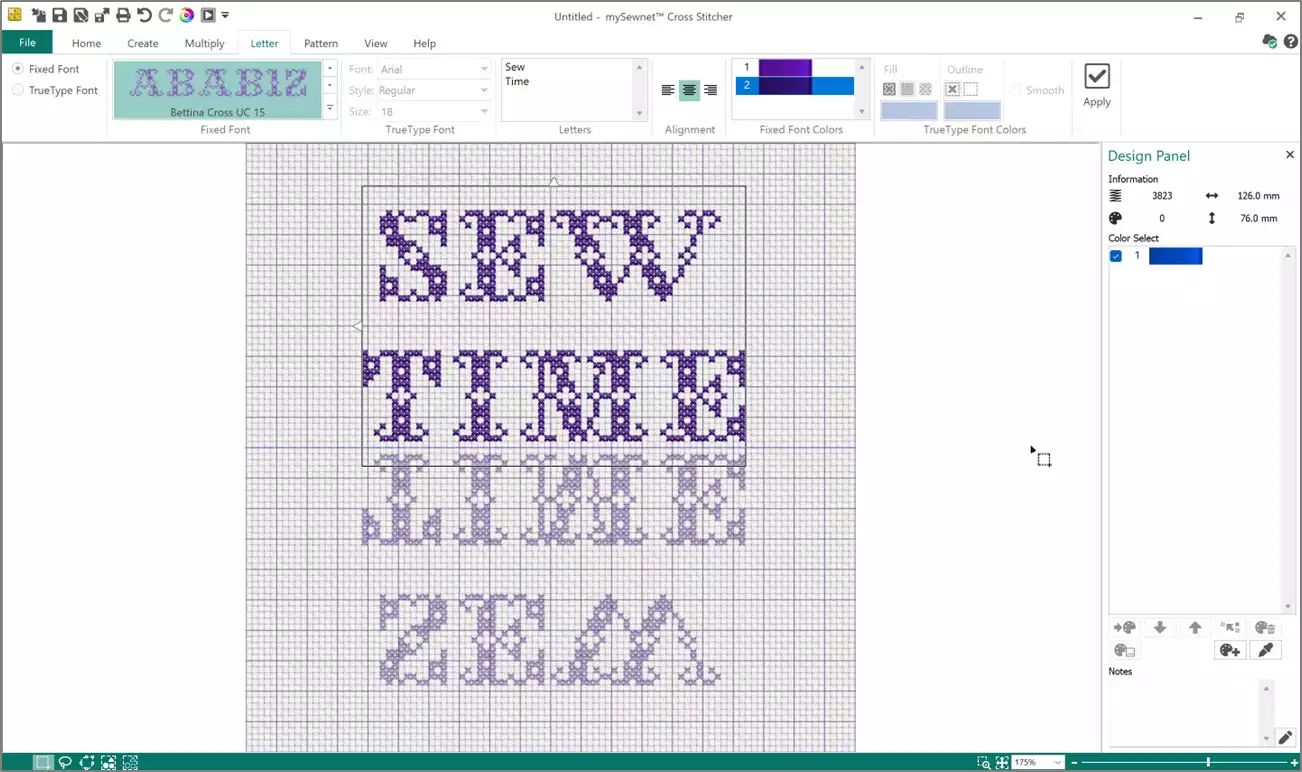
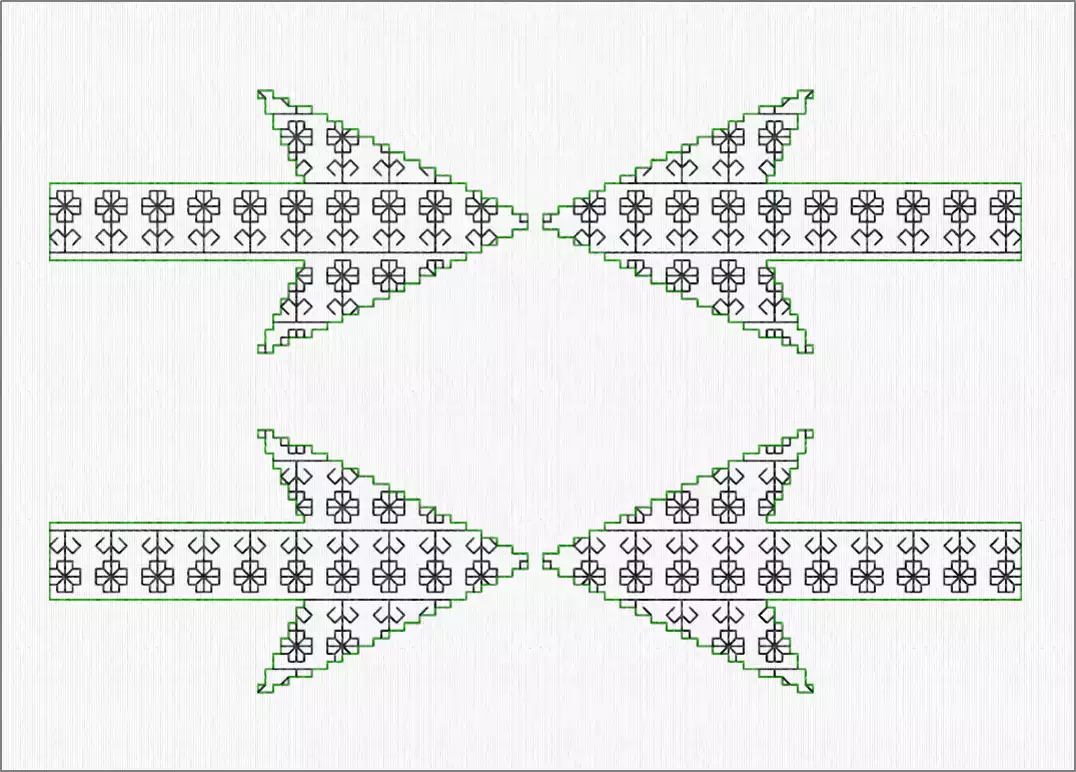
Yanlara ve Aşağıya Yansıt
Aynalar, hem dikey hem de yatay merkez çizgileriyle aynı anda kesişir — dört yönde de simetriktir.
Örnek: Sekme oluşturun, Şekil 83. Şekil kutusunun konumunu ayarlayın, şekli tamamlamak için sağ tıklayın, ardından Çarpma efektini tamamlamak için tekrar sağ tıklayın.
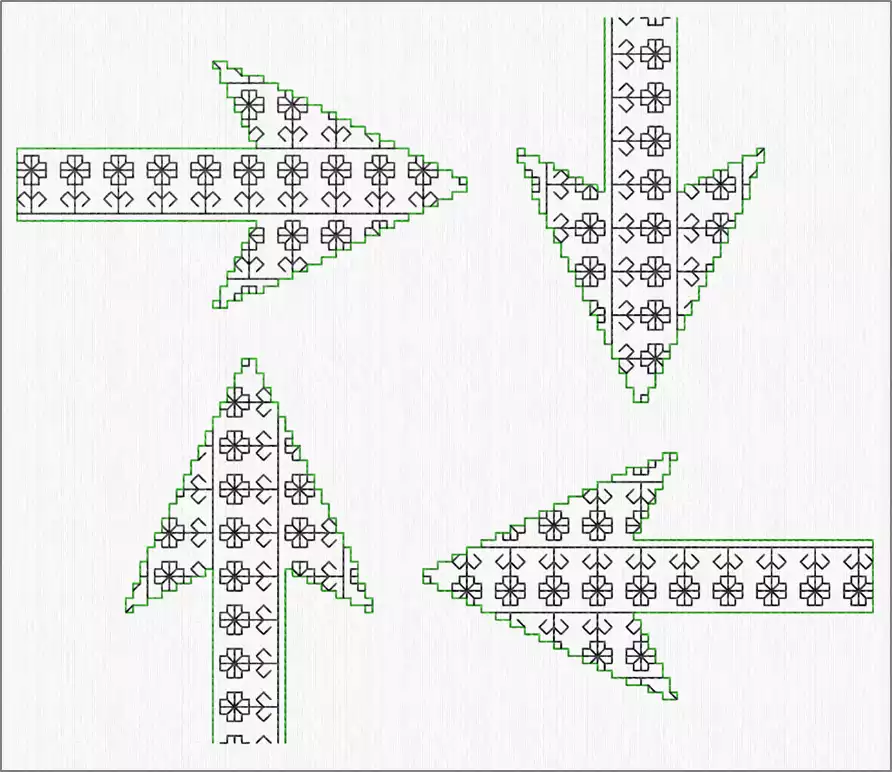
4 Yönlü Döndürme
Çapraz hareketi dört kez tekrarlar; her seferinde merkez noktası etrafında 90° döndürülür.
Örnek: Sekme oluşturun, Şekil 83. Şekil kutusunun konumunu ayarlayın, şekli tamamlamak için sağ tıklayın, ardından Çarpma efektini tamamlamak için tekrar sağ tıklayın.
Reflect 8 Yönlü
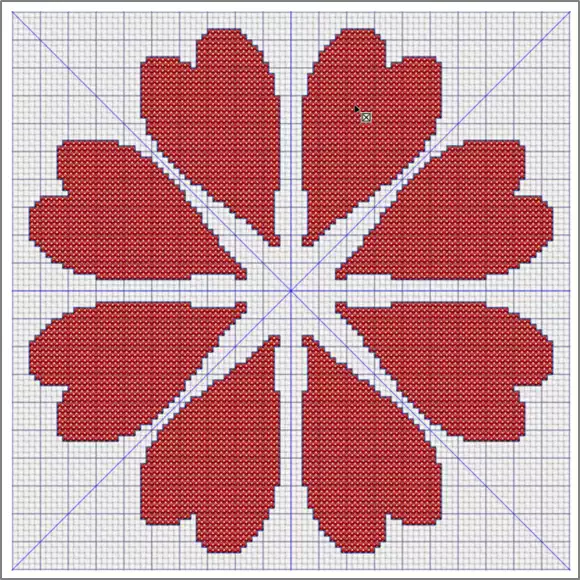
Aynalar, merkez etrafında sekiz kez dönüyor. Desenler çiftler halinde yansıyor ve her çift dört kadranda tekrarlanıyor — bu da karmaşık, kaleydoskopik sonuçlar elde etmek için ideal.
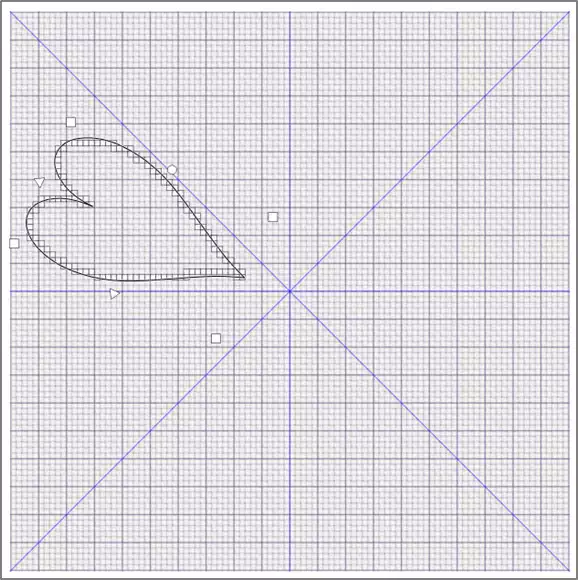
Örnek: Sekme oluşturun, Kırmızı renkle çapraz dolgu yapın, Mor renkle kontur dikişi yapın, Şekil 72'yi seçin. Şekil kutusunun boyutunu ve konumunu ayarlayın, şekli tamamlamak için sağ tıklayın, ardından Çarpma efektini tamamlamak için tekrar sağ tıklayın.
Merkez Noktasını Kaydırma
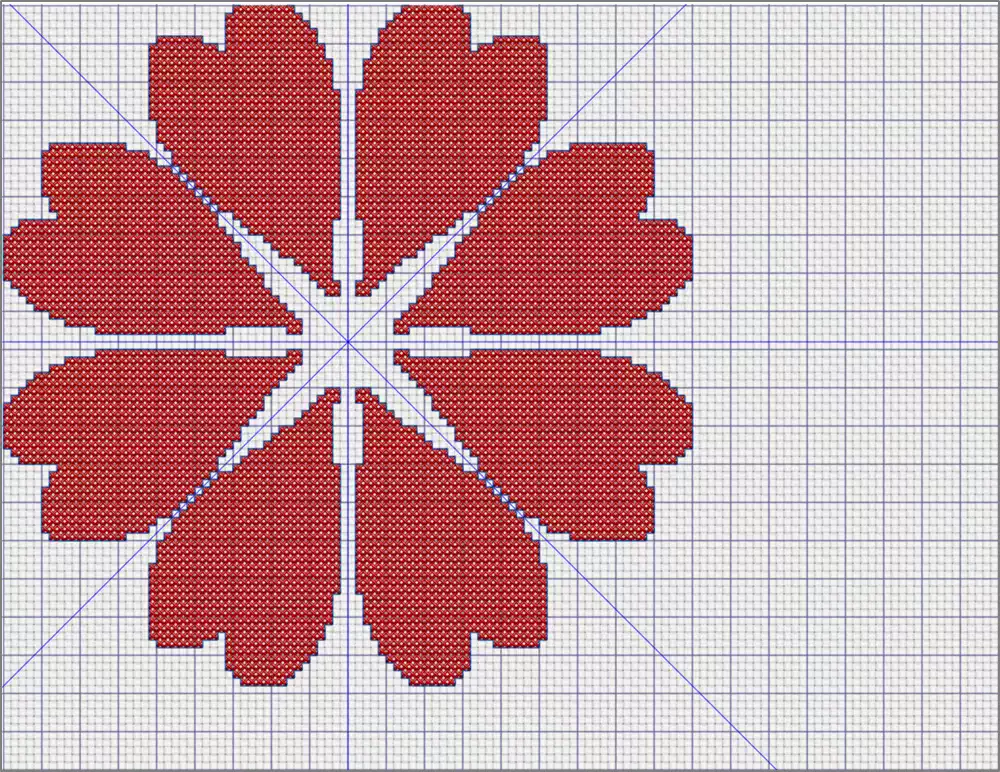
Varsayılan olarak, “Çarpma” işlevi tasarım alanının dikey ve yatay merkezinden hareket eder. “Merkezi Yerleştir” seçeneği, bu merkez noktasını farklı bir konuma taşımanıza olanak tanır — bu, kaydırmalı veya asimetrik çarpma efektleri oluşturmak için idealdir. “Merkezi Sıfırla” seçeneği ise merkezi varsayılan konumuna geri getirir.
Ekstra İpucu — Çapraz Dikiş Desen Özellikleri
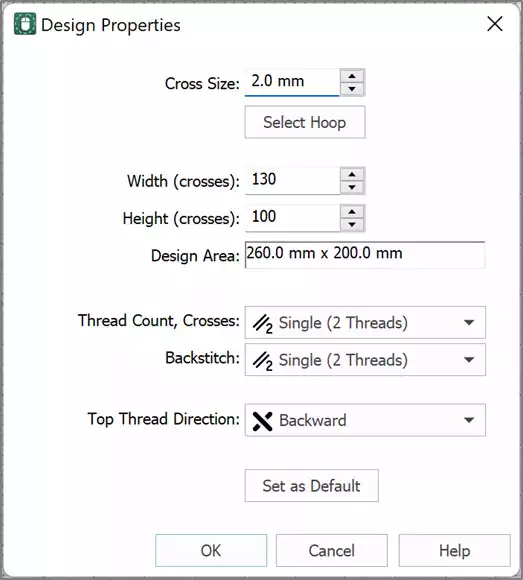
“Görünüm” sekmesi (Windows) veya “Tasarım” sekmesi (Mac) altında bulunan Cross Stitcher Tasarım Özellikleri, aşağıdakileri ayrıntılı olarak ayarlamanıza olanak tanır:
- Çap ve çerçeve ayarları
- Tasarım alanındaki çapraz sayımı
- Her ilmekte iplik kaç kez çaprazlanıyor?
-
Üst ipliğin yönü
Bu ayarlarla — özellikle iplik çaprazlama sayısı ve yönüyle — denemeler yapmak, nakışlarınıza daha doğal ve el yapımı bir görünüm kazandırmanın harika bir yoludur.