


Quilt Block Wizard ile bir Spiro Quilt bloğu oluşturun
CREATIVATE Eğitim
15 Temmuz 2025
Quilt Block Wizard ile bir Spiro Quilt bloğu oluşturun
Quilt Block Wizard i ve Spiro aracı, şaşırtıcı derecede güçlü bir ikili oluşturur. Sonuç, karmaşık ve ayrıntılı görünse de — göreceğiniz üzere — sadece birkaç basit adımda ortaya çıkar. Bu teknik, yorgan blokları, dekoratif paneller veya çarpıcı bir geometrik tasarım gerektiren her türlü proje için araç setinizde bulundurmanız gereken harika bir yöntemdir.
İhtiyacınız Olanlar
- Creativate Extra veya Elite (Windows veya Mac)
Talimatlar
Spiro Tasarımını Oluşturun
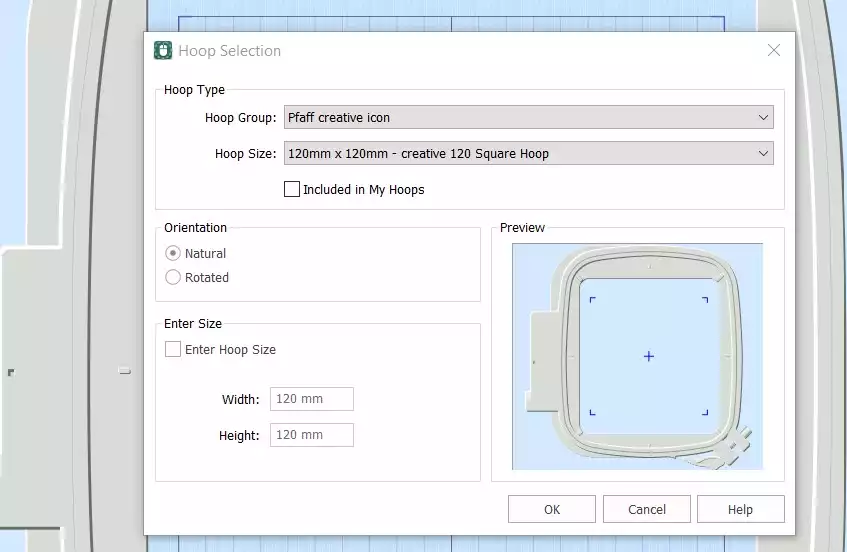
- Creativate 'i açın,Embroidery Yazılımını seçin, ardından Boş Tuval, ve Çember Boyutu'nu şu şekilde ayarlayın: 120 mm. Tıklamak TAMAM..
- Şuraya git Sekme oluştur ve tıklayın Spiro. İletişim kutusu açıldığında, Boyut ayarını 100 mm ve tıklayın Rastgele. Tıklamak TAMAM. uyarı mesajında — yeni bir Spiro oluşturulacak. Tıklamaya devam edin Rastgele hoşunuza giden bir tasarım bulana kadar. Ayrıca, tutamaçları kullanarak şekli manuel olarak ince ayarlayabilirsiniz. Tıklayın TAMAM. iş bittiğinde.
İpucu: Spiro Sihirbazı hakkında kapsamlı bir kılavuz için, Studio’daki arama çubuğuna “Spiro” yazın.
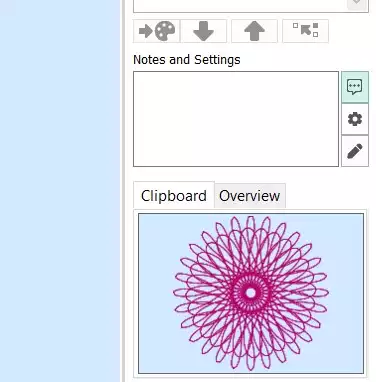
- “Ana Sayfa ” sekmesine gidin ve “Kopyala” seçeneğine tıklayın. Spiro şimdi panoya kaydedilecektir.
Yorgan Bloğunu Oluşturun
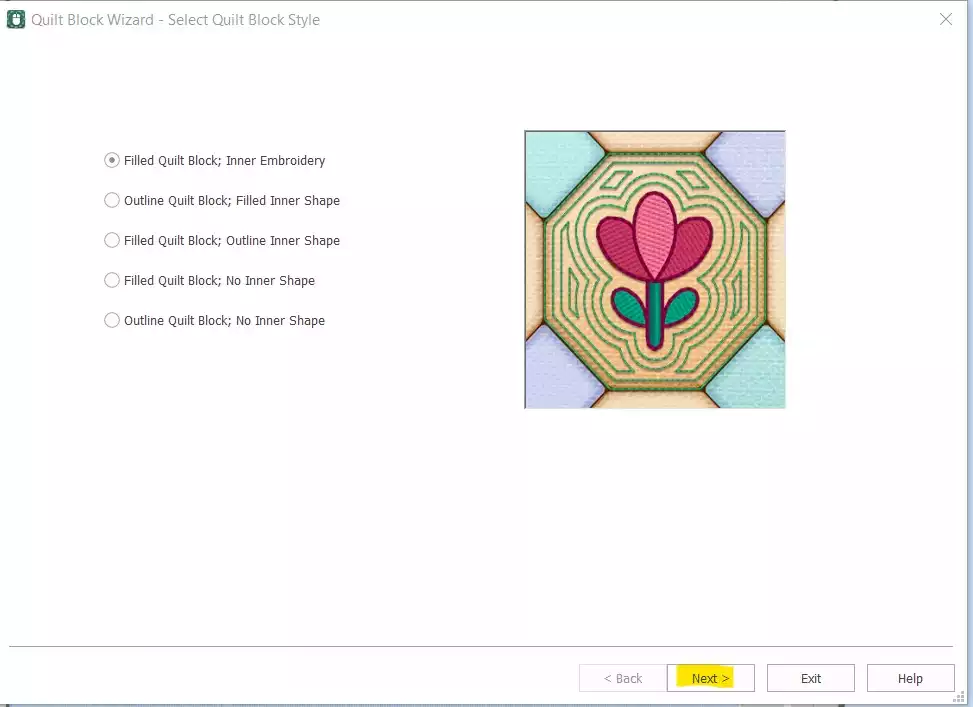
- Gitmek Oluştur → Yorgan Bloğu ve select Dolgulu Yorgan Bloğu: İç Kısım Embroidery. Tıklamak Sonraki.
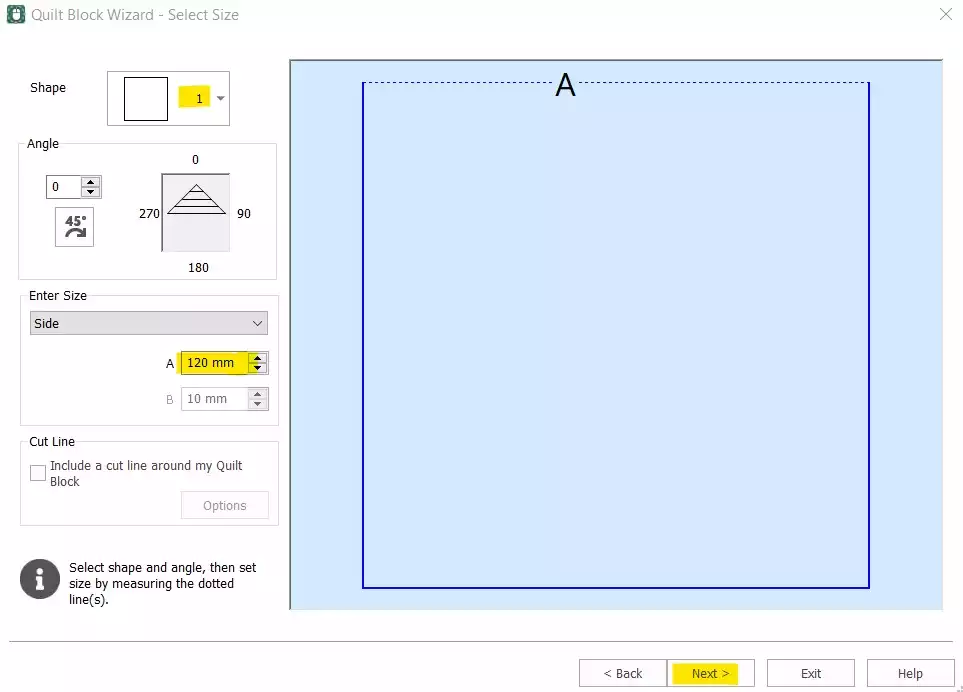
- Select Şekil 1 (Kare) ve “Side” seçeneğini 120 mm. Tıklamak Sonraki.
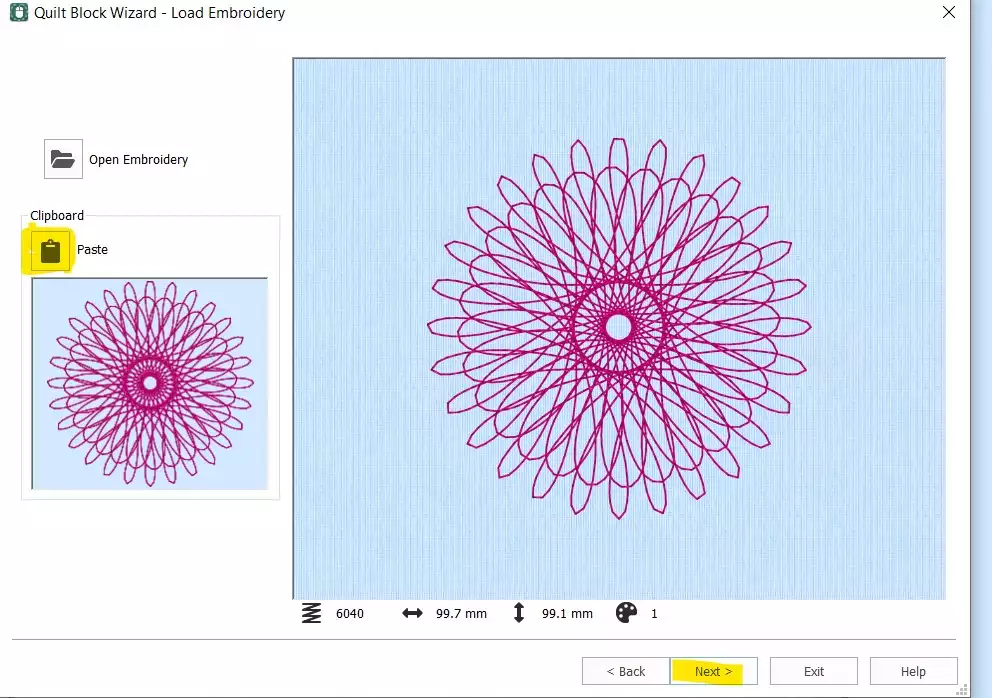
- Tıklamak Yapıştır Spiro’yu panodan eklemek için. Tıklayın Sonraki.
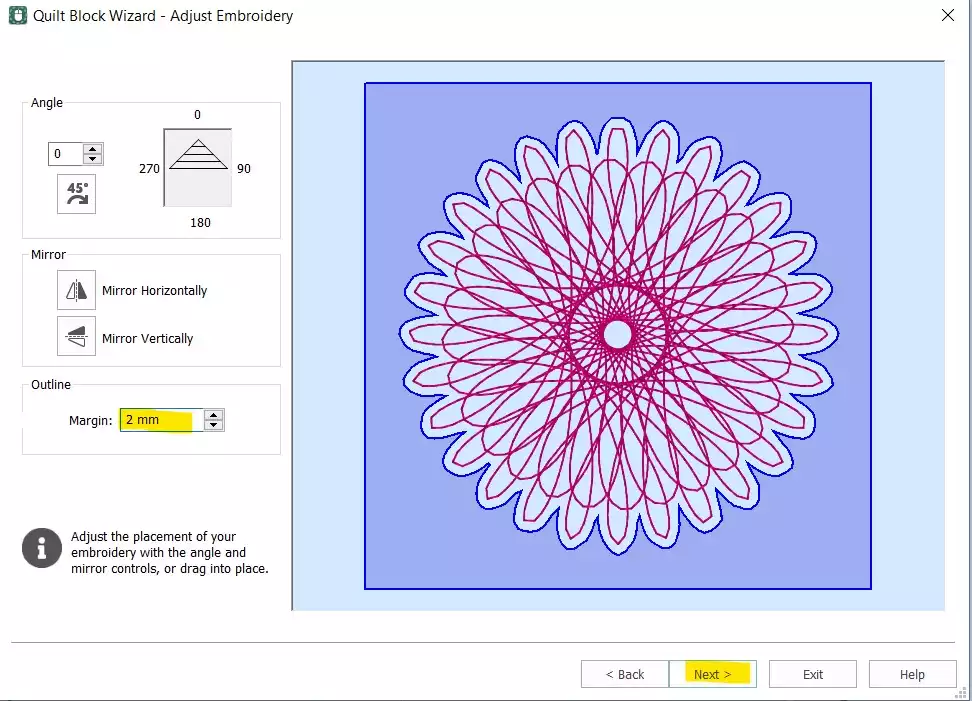
- Şunu ayarlayın: Kenar boşluğu 2 mm. Tıklamak Sonraki.
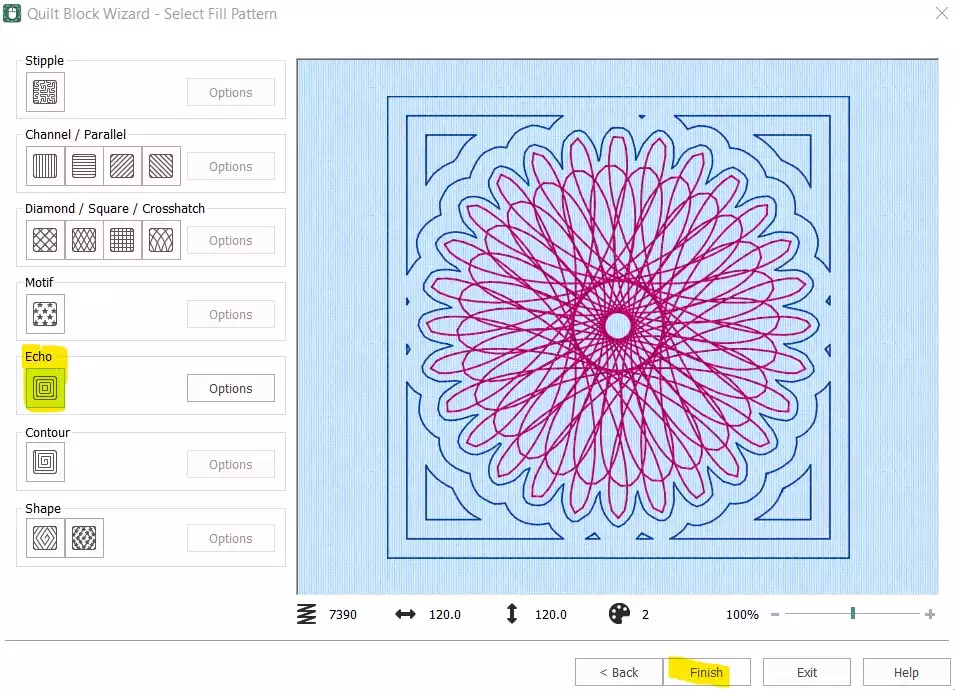
- Select Yankı ve tıklayın Bitir.
Dikiş Sırasını Düzenleyin ve Son Haline Getirin
- Yorgan bloğu artık oluşturuldu — ancak orijinal bağımsız Spiro’nun hala kaldırılması gerekiyor ve tasarımın dışa aktarılmaya hazır hale gelmesi için dikiş sırasının ayarlanması gerekiyor.
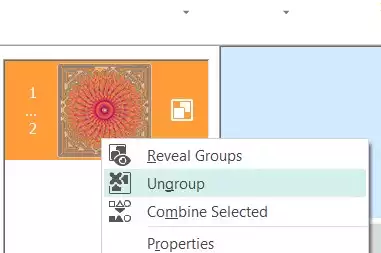
- Film Şeridi'nde, select adresindeki ilk renkli görüntüye (orijinal Spiro) sağ tıklayın ve şunu seçin: Silme. Artık elinizde yalnızca gömülü Spiro’nun bulunduğu yorgan bloğu kalmış olmalı. Film Şeridi’ndeki “ embroidery ” üzerine sağ tıklayın ve select Grubu Çöz.
- Select ilk bölüm (Spiro) ve şunu kullanın: aşağı ok tuşu Film Şeridi'nin en altında, dikiş sırasındaki konumunu aşağıya kaydırmak için.
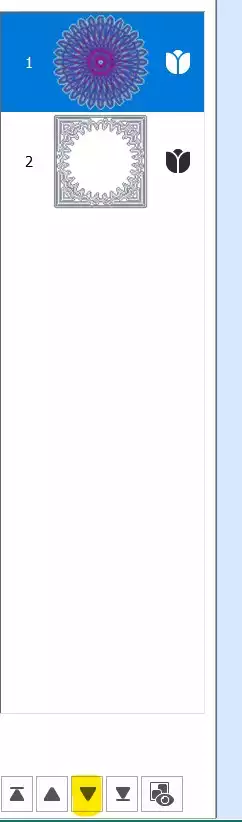
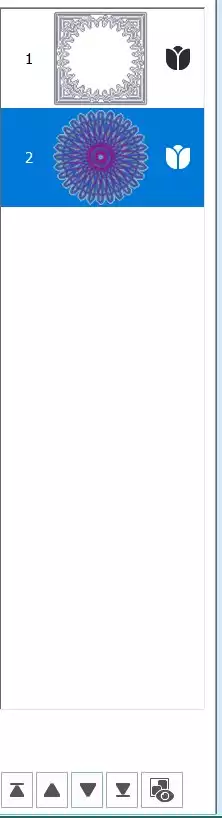
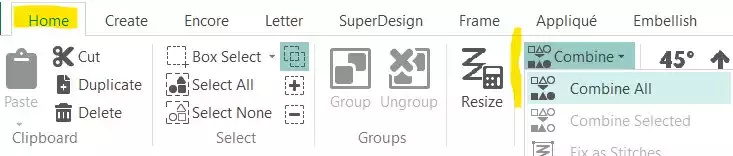
- Şuraya git Ana Sayfa sekmesi ve tıklayın Birleştir → Tümünü Birleştir.
Kaydet ve Dışa Aktar
- Spiro Yorgan Bloğunuz tamamlandı. Çalışma dosyasını kaydedin, ardından tercih ettiğiniz formatta (örneğin, .vp3) dışa aktarın.