


Erstellen Sie einen Spiro-Quiltblock mit dem Quilt Block Wizard
CREATIVATE Bildung
15. Juli 2025
Erstellen Sie einen Spiro-Quiltblock mit dem Quilt Block Wizard
Das „ Quilt Block Wizard “-Werkzeug und das „Spiro“-Werkzeug bilden eine überraschend leistungsstarke Kombination. Das Ergebnis sieht aufwendig und komplex aus – aber wie Sie sehen werden, lässt es sich in nur wenigen einfachen Schritten umsetzen. Diese Technik ist eine großartige Ergänzung für Ihr Repertoire, sei es für Quiltblöcke, dekorative Paneele oder jedes andere Projekt, das ein auffälliges geometrisches Design erfordert.
Was Sie benötigen
- Creativate Extra oder Elite (Windows oder Mac)
Anweisungen
Erstellen Sie das Spiro-Design
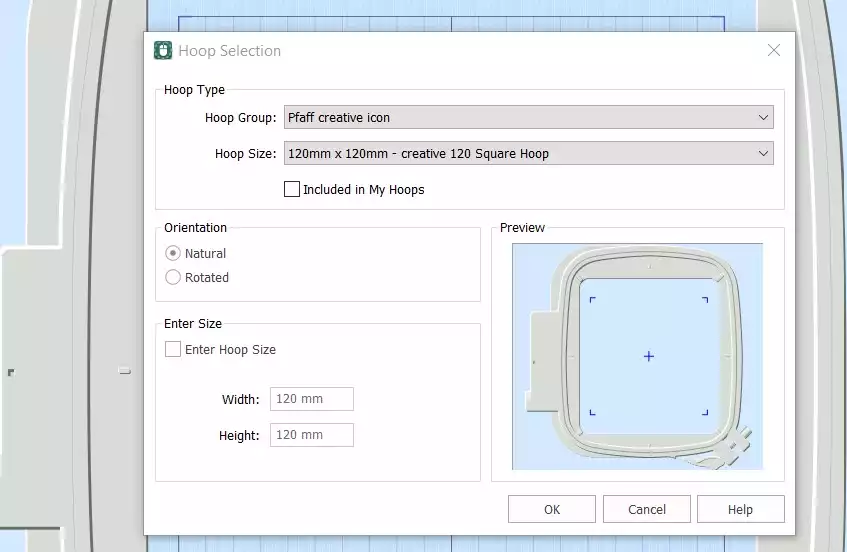
- Öffnen Sie die Software „ Creativate “ unterEmbroidery und wählen Sie Leere Leinwand, und stellen Sie die Reifengröße auf 120 mmKlicken Sie auf OK.
- Gehen Sie zum Registerkarte "Erstellen und klicken Sie Spiro. Wenn sich das Dialogfeld öffnet, stellen Sie die Größe auf 100 mm und klicken Sie ZufälligKlicken Sie auf OK auf die Warnmeldung – es wird ein neuer Spiro generiert. Klicken Sie weiter Zufällig bis du ein Design findest, das dir gefällt. Du kannst die Form auch mithilfe der Ziehpunkte manuell feinjustieren. Klicke auf OK wenn Sie fertig sind.
Tipp: Eine vollständige Anleitung zum Spiro-Assistenten erhalten Sie, wenn Sie in der Suchfunktion von Studio „Spiro“ eingeben.
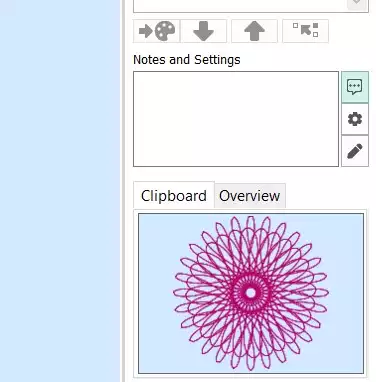
- Wechseln Sie zur Registerkarte „Start“ und klicken Sie auf „Kopieren“. Das Spiro-Diagramm wird nun in die Zwischenablage gespeichert.
Den Quiltblock zusammenstellen
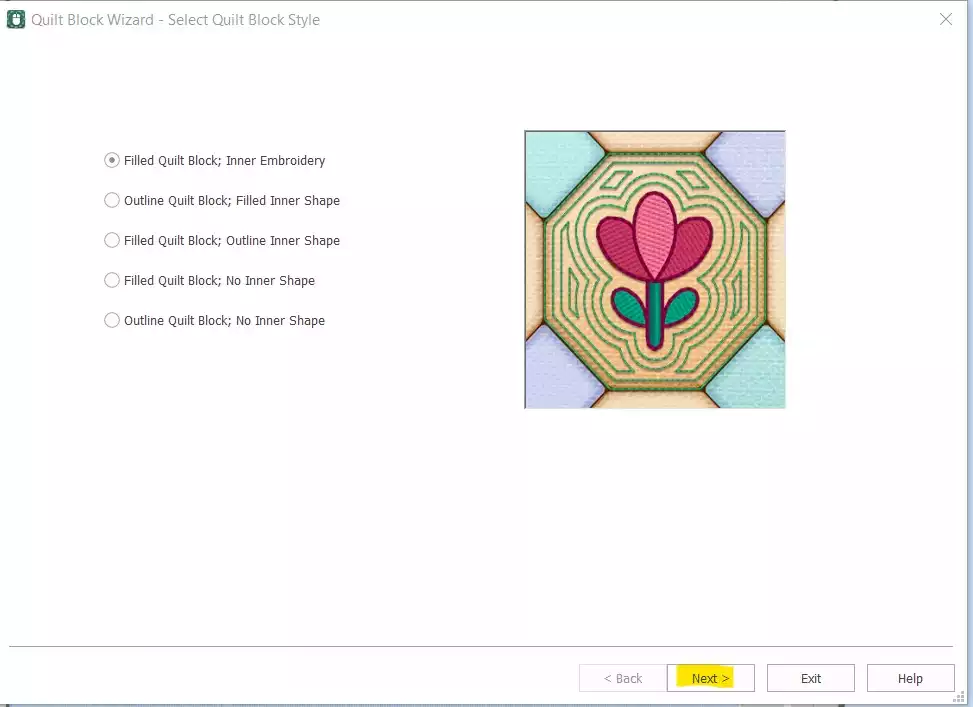
- Gehe zu Erstellen → Quiltblock und select Gefüllter Quiltblock: Innenseite EmbroideryKlicken Sie auf Weiter.
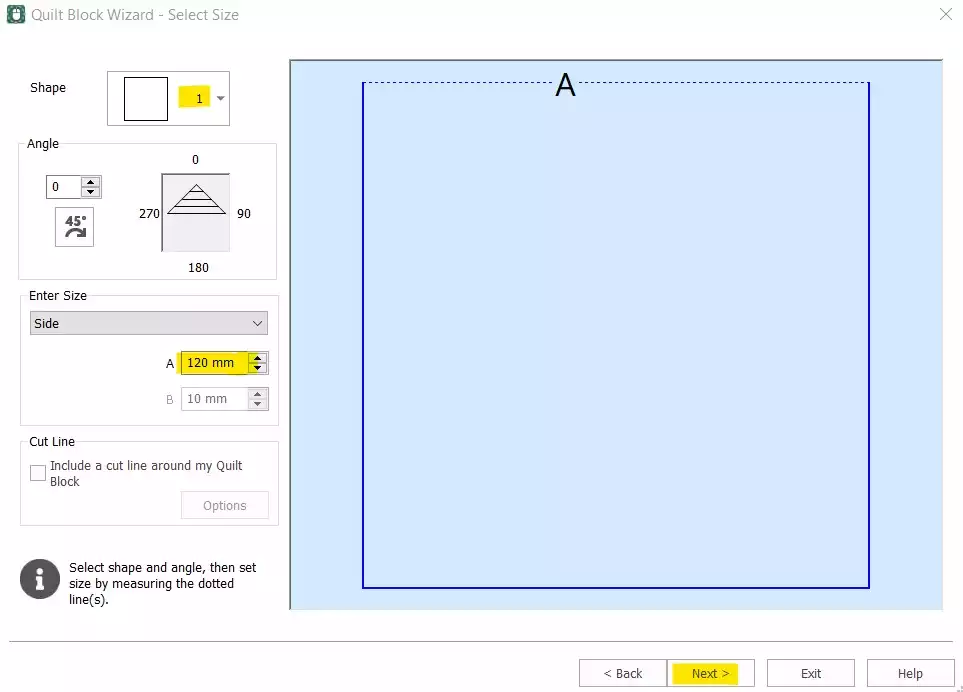
- Select Form 1 (Quadrat) und stellen Sie die Seite auf 120 mmKlicken Sie auf Weiter.
- Klicken Einfügen um das Spiro aus der Zwischenablage einzufügen. Klicken Sie auf Weiter.
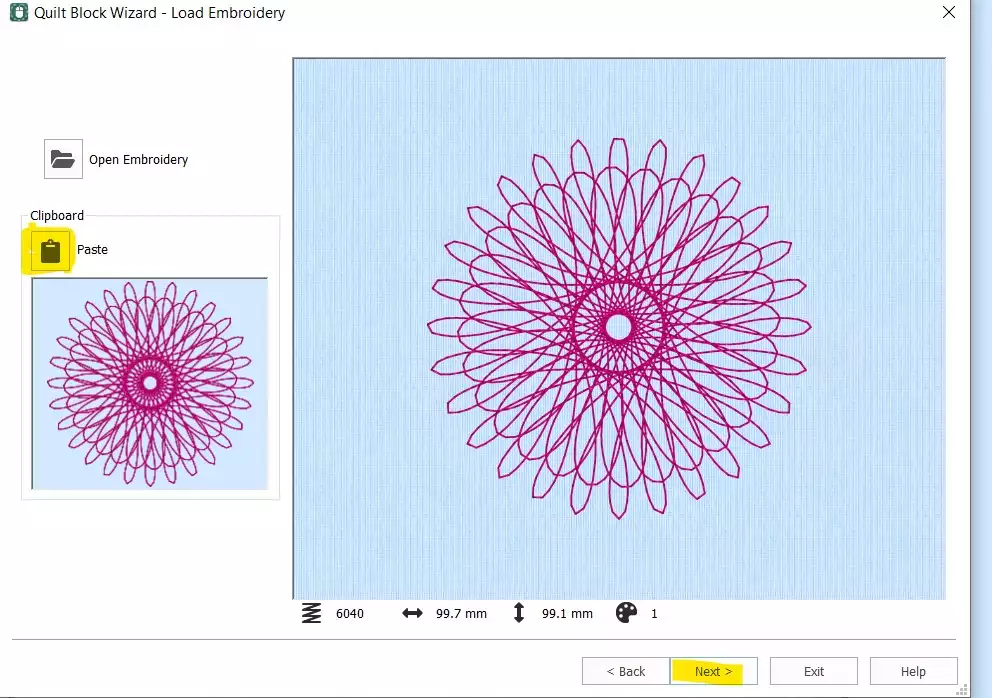
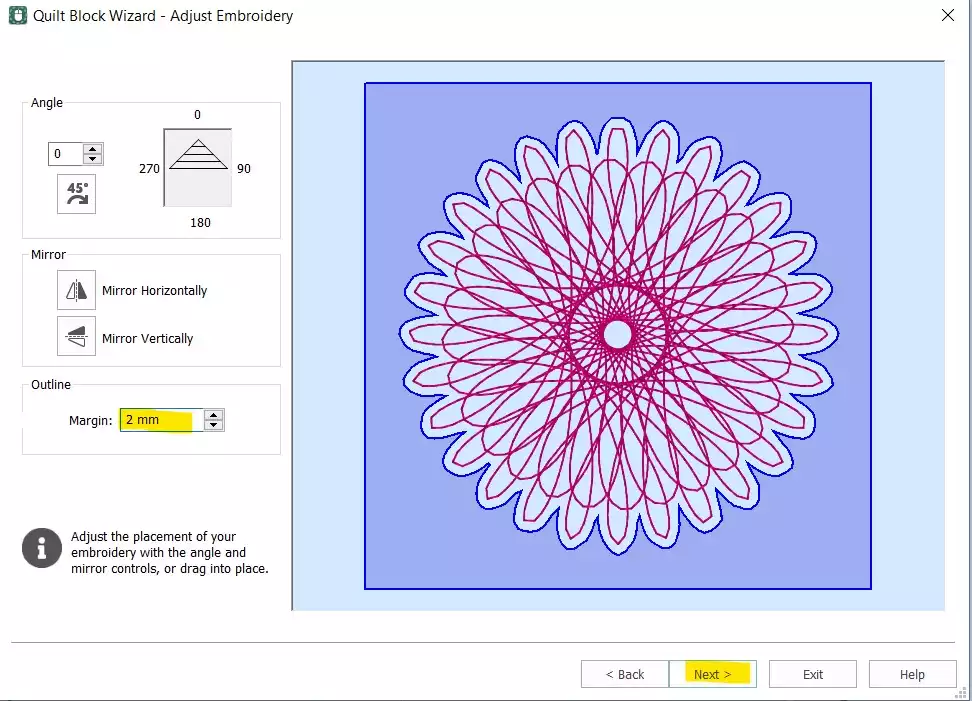
- Stelle die Rand auf 2 mmKlicken Sie auf Weiter.
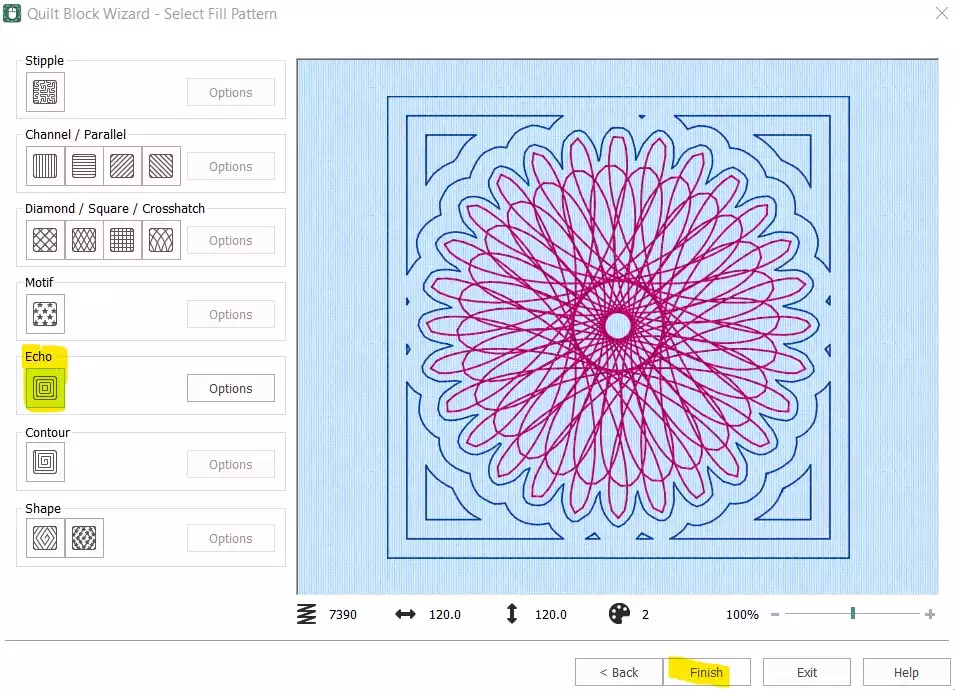
- Select Echo und klicken Sie Fertig.
Aufräumen und die Stichreihenfolge fertigstellen
- Der Quiltblock ist nun fertiggestellt – allerdings muss der ursprüngliche eigenständige „Spiro“-Block noch entfernt und die Stichreihenfolge angepasst werden, bevor das Design exportiert werden kann.
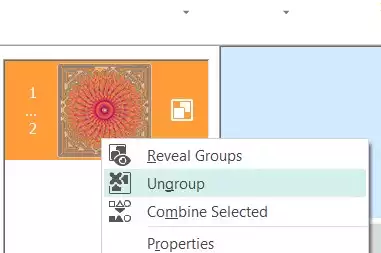
- Wählen Sie im Filmstreifen unter „ select “ die erste Farbe (das ursprüngliche Spiro) aus, klicken Sie mit der rechten Maustaste darauf und wählen Sie Löschen. Nun sollte nur noch der Quiltblock mit dem eingebetteten Spiro übrig sein. Klicken Sie mit der rechten Maustaste auf den „ embroidery “ im Filmstreifen und select Gruppierung aufheben.
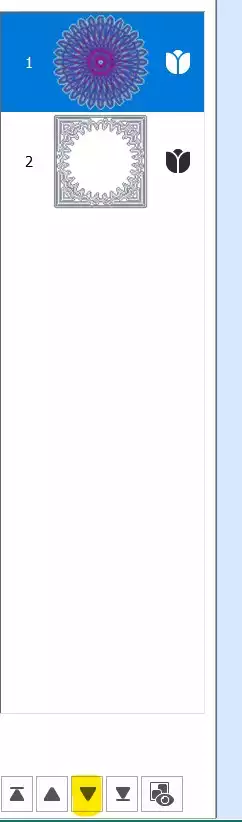
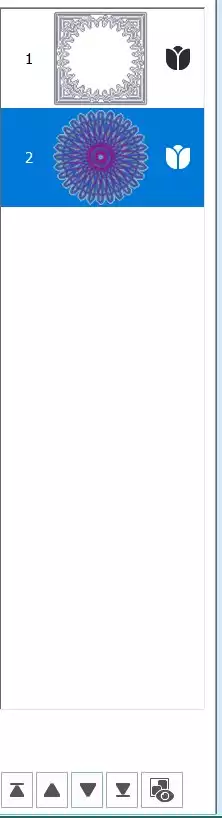
- Select den ersten Teil (den Spiro) und verwenden Sie den Pfeiltaste nach unten am unteren Rand des Filmstreifens, um ihn in der Stichreihenfolge nach unten zu verschieben.
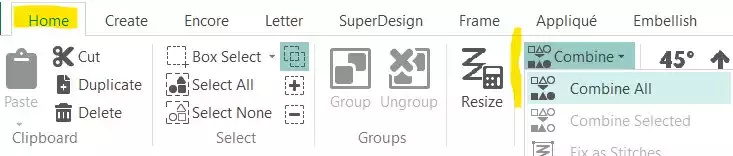
- Gehen Sie zum Registerkarte „Startseite“ und klicken Sie Kombinieren → Alle kombinieren.
Speichern und exportieren
- Ihr „Spiro“-Quiltblock ist fertig. Speichern Sie die Arbeitsdatei und exportieren Sie sie anschließend in das von Ihnen gewünschte Format – zum Beispiel als .vp3.