


Stwórz blok patchworkowy „Spiro” przy użyciu Quilt Block Wizard
CREATIVATE edukacja
15 lipca 2025 r.
Stwórz blok patchworkowy „Spiro” przy użyciu Quilt Block Wizard
Narzędzie „ Quilt Block Wizard ” w połączeniu z narzędziem „Spiro” tworzy zaskakująco skuteczne połączenie. Efekt końcowy wygląda na skomplikowany i złożony — ale jak się przekonasz, powstaje w zaledwie kilku prostych krokach. To świetna technika, którą warto mieć w swoim arsenale przy tworzeniu bloków patchworkowych, paneli dekoracyjnych lub wszelkich projektów wymagających efektownego wzoru geometrycznego.
Co będzie potrzebne
- Creativate Extra Elite (Windows lub Mac)
Instrukcje
Stwórz projekt Spiro
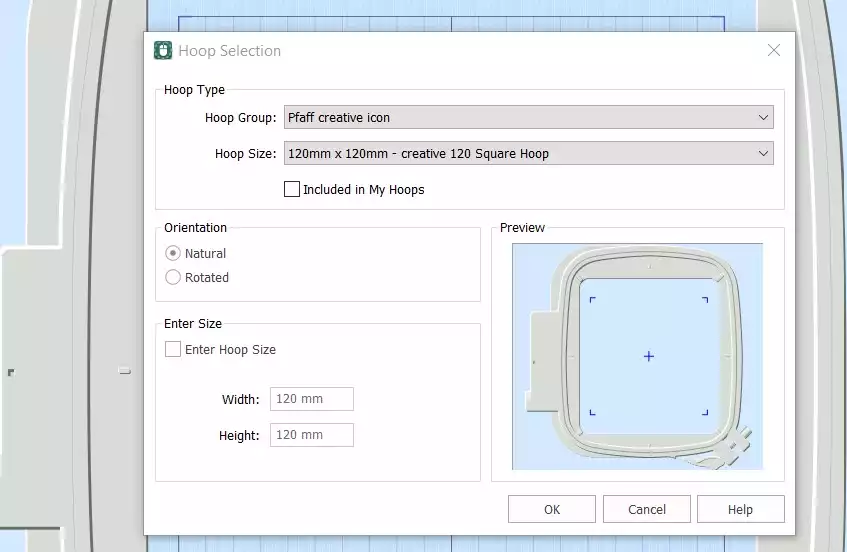
- Otwórz stronę Creativate , wybierz oprogramowanie „Embroidery ”, a następnie wybierz Puste płótnooraz ustaw rozmiar obręczy na 120 mm. Kliknij OK.
- Przejdź do Karta Utwórz i kliknij Spiro. Po otwarciu okna dialogowego ustaw wartość pola „Rozmiar” na 100 mm i kliknij Losowo. Kliknij OK po wyświetleniu komunikatu ostrzegawczego — zostanie wygenerowany nowy plik Spiro. Klikaj dalej Losowo aż znajdziesz wzór, który Ci się podoba. Możesz też użyć uchwytów, aby ręcznie dopracować kształt. Kliknij OK po zakończeniu.
Wskazówka: Aby uzyskać pełny przewodnik po kreatorze Spiro, wpisz „Spiro” w polu wyszukiwania w programie Studio.
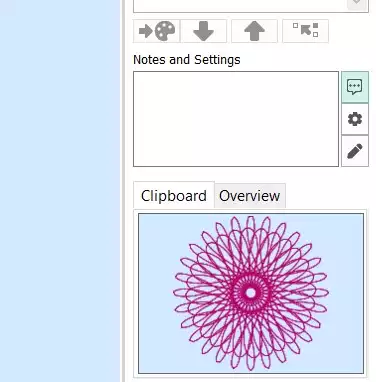
- Przejdź do karty „Strona główna ” i kliknij przycisk „Kopiuj”. Dane Spiro zostaną teraz zapisane w schowku.
Zrób blok patchworkowy
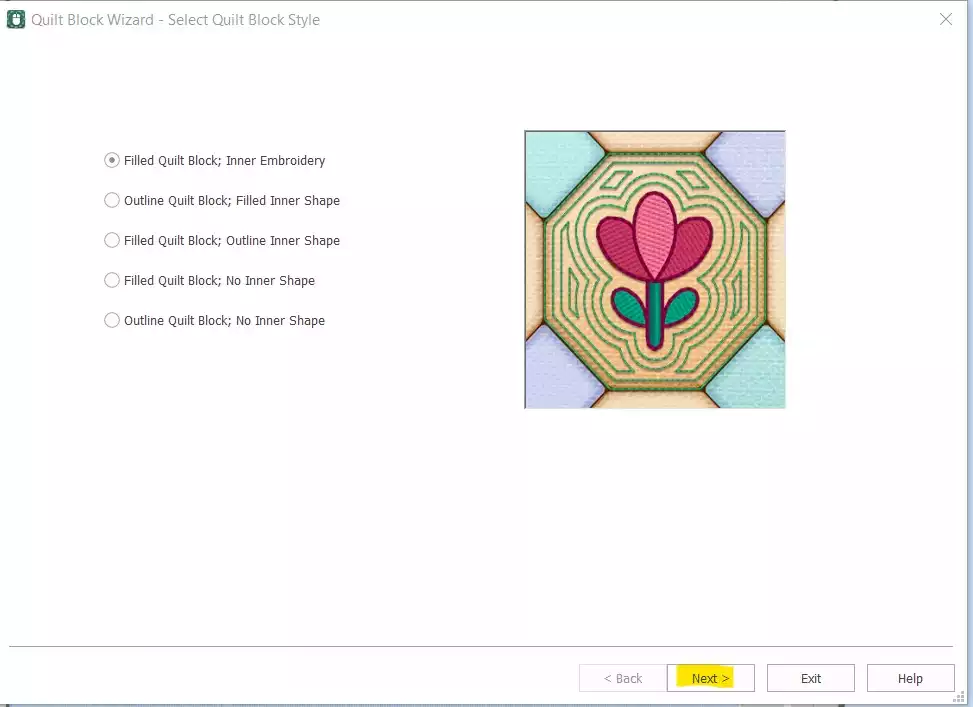
- Przejdź do Utwórz → Blok patchworkowy i select Wypełniony blok patchworkowy: wewnętrzny Embroidery. Kliknij Następny.
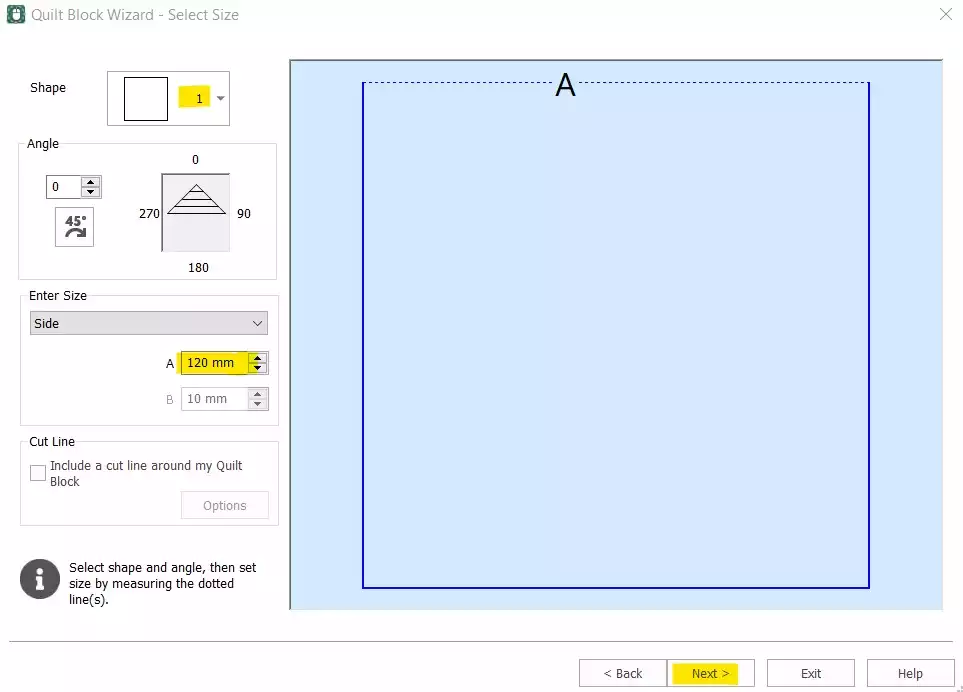
- Select Kształt 1 (kwadrat) i ustaw opcję „Strona” na 120 mm. Kliknij Następny.
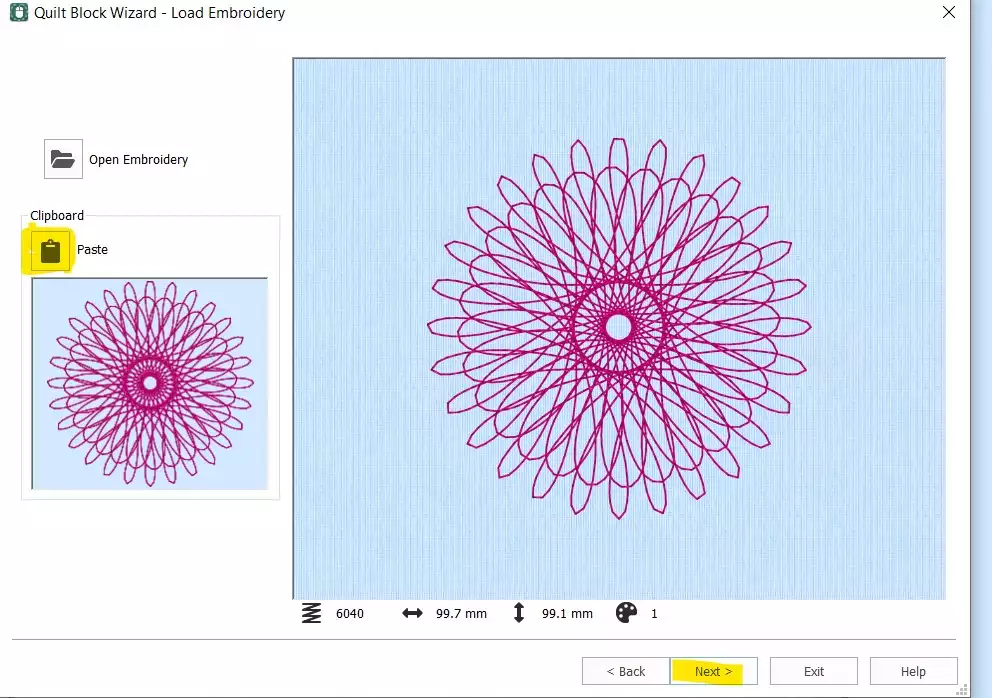
- Kliknij Wklej aby wstawić tekst „Spiro” ze schowka. Kliknij Następny.
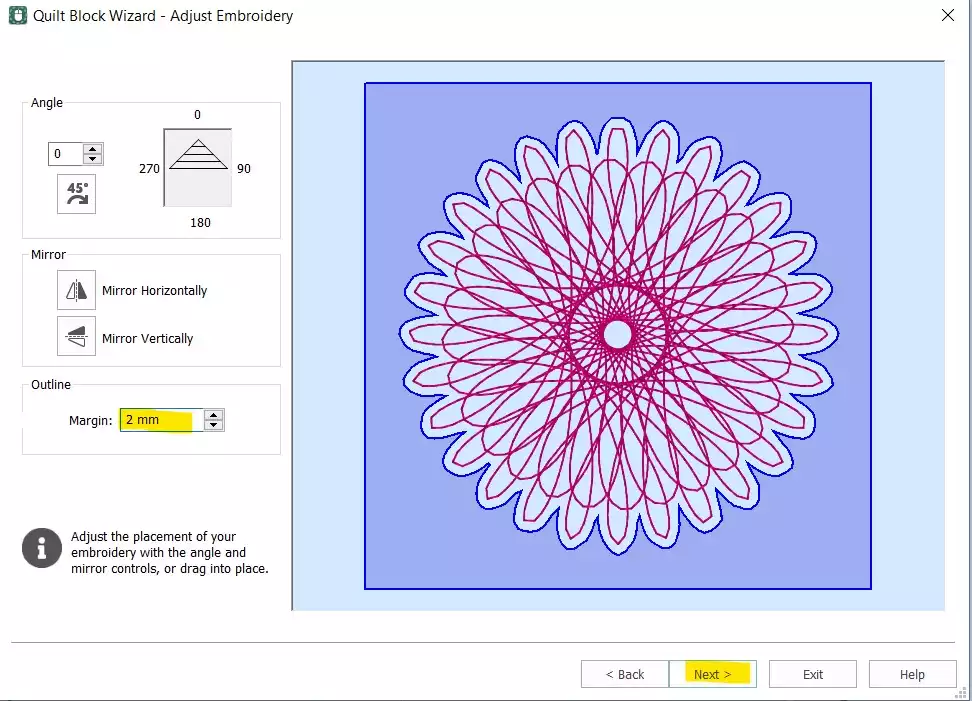
- Ustaw Odstęp do krawędzi 2 mm. Kliknij Następny.
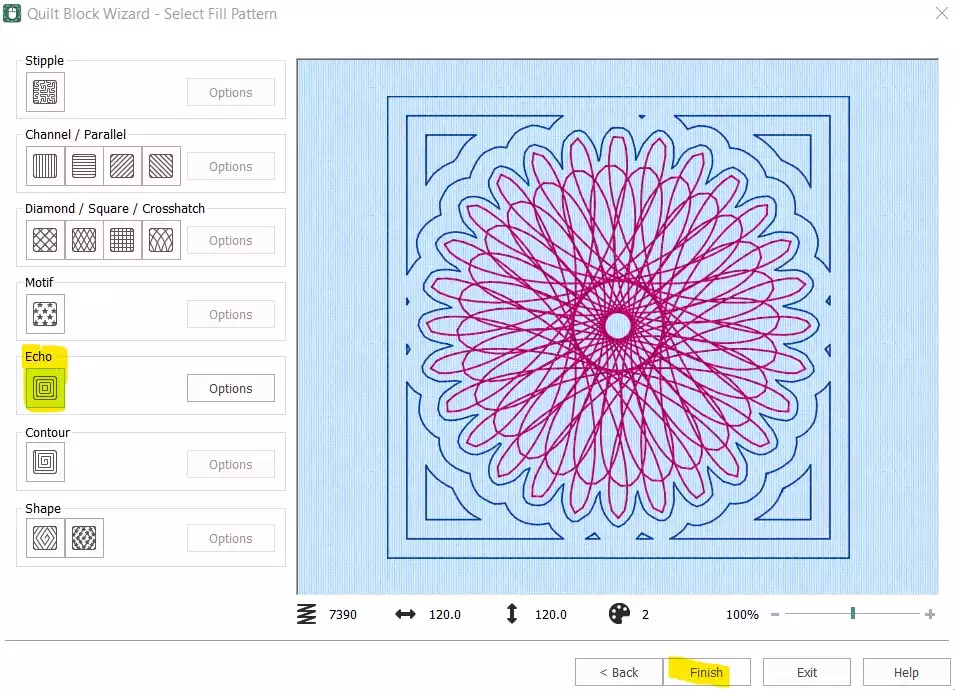
- Select Echo i kliknij Zakończenie.
Uporządkowanie i sfinalizowanie kolejności ściegów
- Blok patchworkowy jest już gotowy — jednak przed wyeksportowaniem wzoru należy jeszcze usunąć pierwotny, samodzielny element „Spiro” oraz dostosować kolejność ściegów.
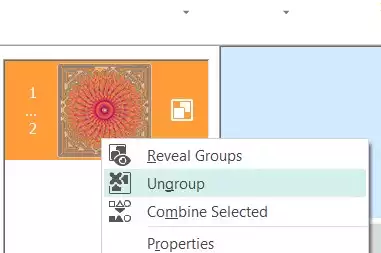
- W sekcji „Film Strip” ( select ) kliknij prawym przyciskiem myszy na pierwszy kolor (oryginalny Spiro) i wybierz Usuń. Powinieneś teraz mieć tylko blok patchworkowy z osadzonym elementem „Spiro”. Kliknij prawym przyciskiem myszy na „ embroidery ” w pasku klatek i select Rozgrupuj.
- Select pierwszej części (Spiro) i skorzystaj z klawisz strzałki w dół na dole paska filmu, aby przesunąć go w dół w kolejności ściegów.
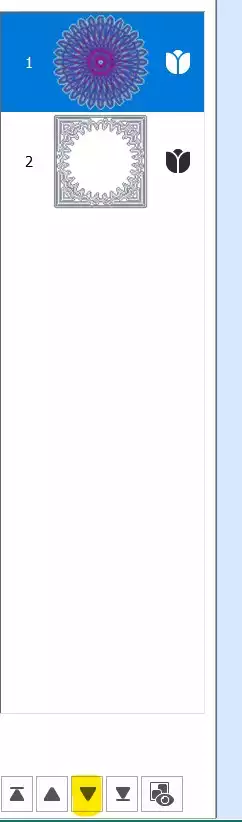
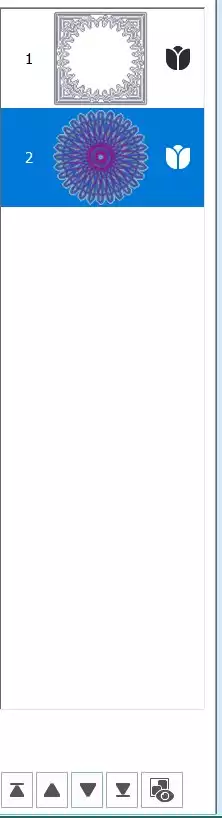
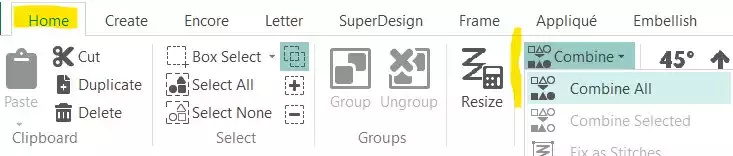
- Przejdź do Karta „Strona główna” i kliknij Połącz → Połącz wszystko.
Zapisz i eksportuj
- Twój blok kołdry „Spiro” jest gotowy. Zapisz plik roboczy, a następnie wyeksportuj go w wybranym formacie — na przykład .vp3.